
Claude Integration with Flux MCP
📘 Overview Guide: Using all 11 AceData Cloud MCPs in Claude →
Flux is an open-source image generation model developed by the former team of Stability AI (Black Forest Labs), excelling in detail restoration, text rendering, and light and shadow processing. By integrating with Claude through MCP, you can directly call Flux to generate images in conversations.
¶ Adding Flux MCP via OAuth
Both the claude.ai web version and Claude Desktop support remote MCP Connectors. This process uses OAuth authorization: no manual configuration of keys is required, nor do you need to edit local configuration files. You just need to log in to your AceData Cloud account and authorize, and Claude will be able to call the Flux tool in conversations.
Flux is suitable for product images, posters, logo drafts, product scene changes, and image tasks that require more stable text rendering.
¶ Step 1: Open Connectors
In the claude.ai web version, open https://claude.ai/customize/connectors, or access Settings → Customize → Connectors from the avatar in the lower left corner.
The entry for Claude Desktop is also in the Connectors area of the settings, and the interface is basically the same as the web version. After finding Add custom connector, you can add the Flux MCP Server.
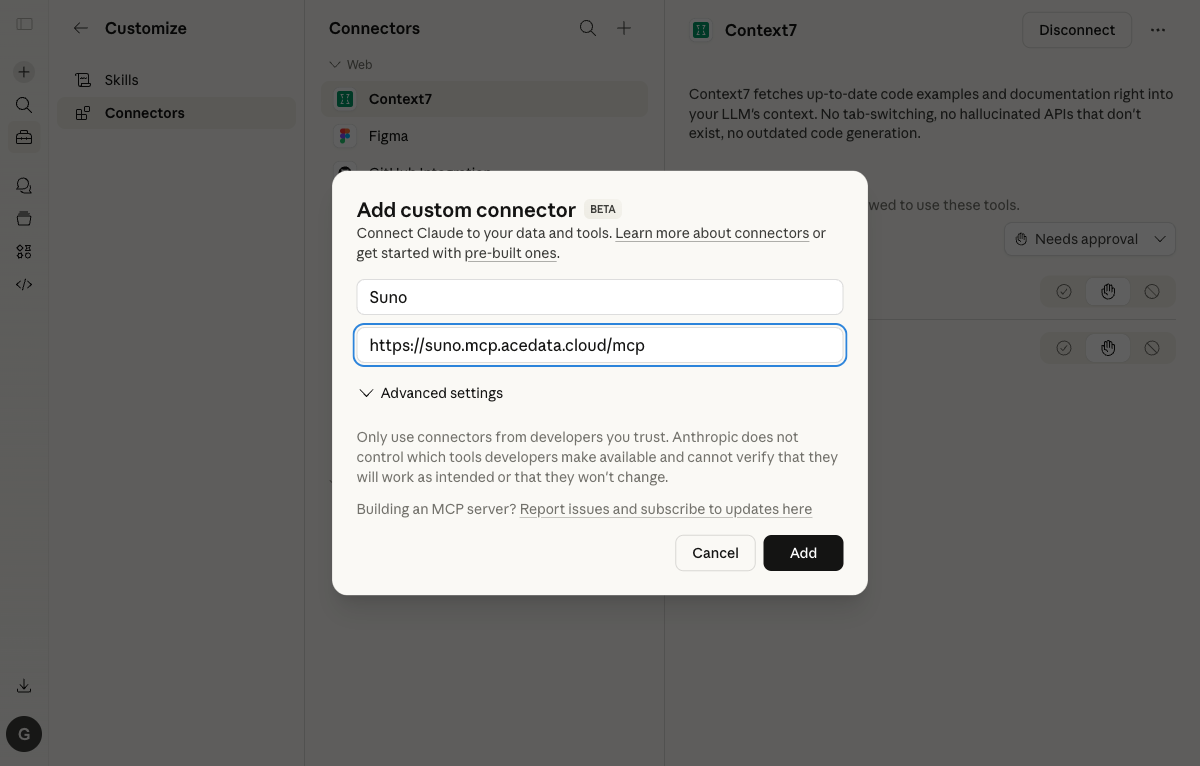
¶ Step 2: Fill in the Flux MCP Server URL
After clicking Add custom connector, you can fill in the Name as flux or Flux, and the URL as the following line:
https://flux.mcp.acedata.cloud/mcp
Once added, Claude will read the list of tools exposed by the Flux MCP Server. The tools you see here are the capabilities that Claude can call in conversations later.
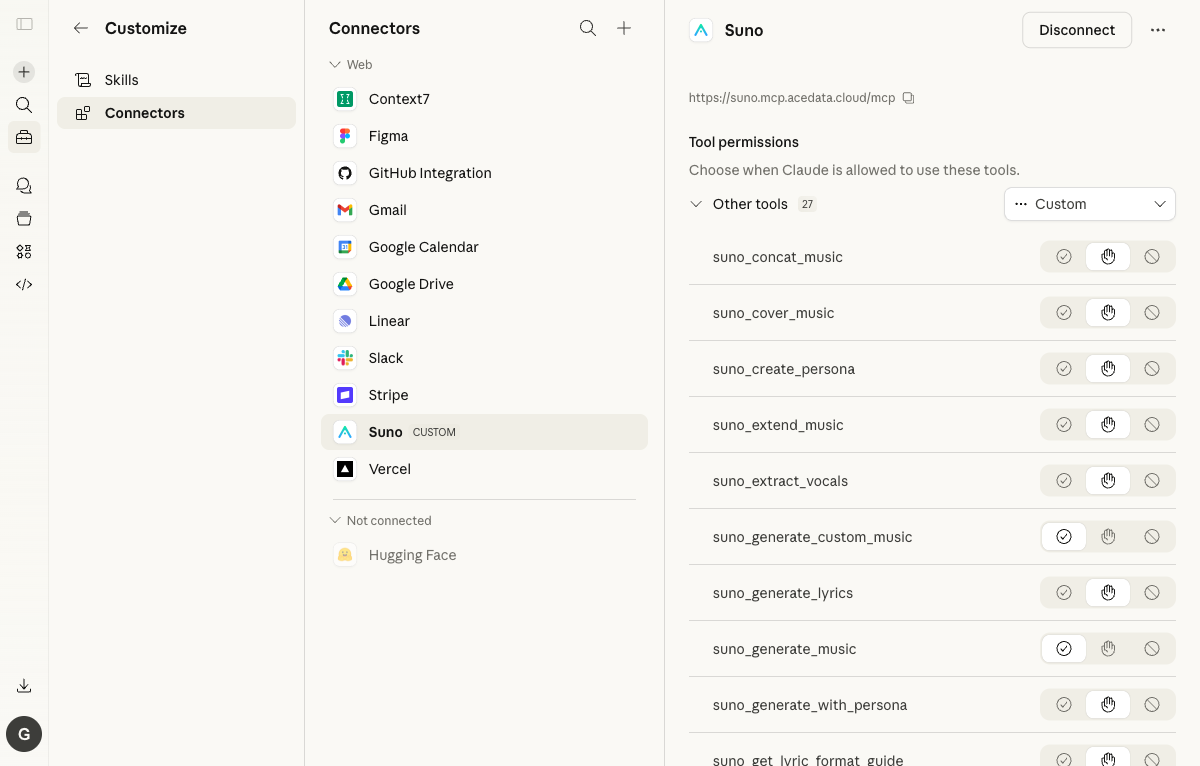
¶ Step 3: Complete AceData Cloud OAuth Authorization
The first time you connect, Claude will redirect you to the AceData Cloud authorization page. You can log in using GitHub, Google, WeChat, email, or phone number; if you don't have an account yet, you can register and receive free credits to test directly.
After confirming the authorization, this Connector will be bound to your AceData Cloud account. Subsequently, when Claude calls the Flux MCP tool, it will deduct fees from the credits of this account.
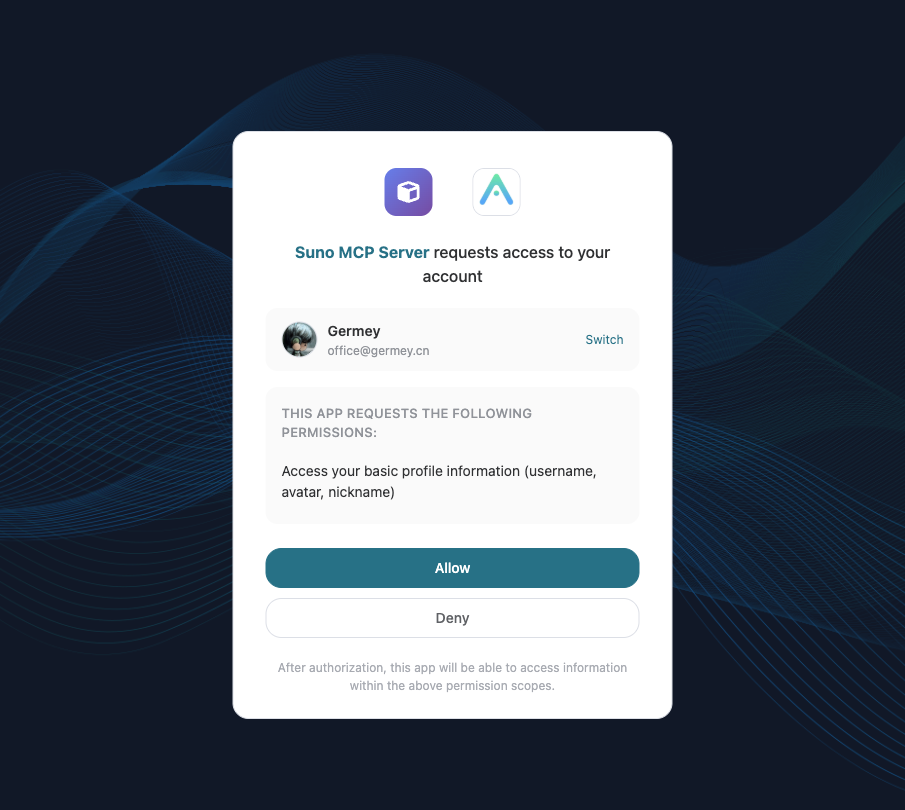
¶ Step 4: Return to Claude and Confirm Connection
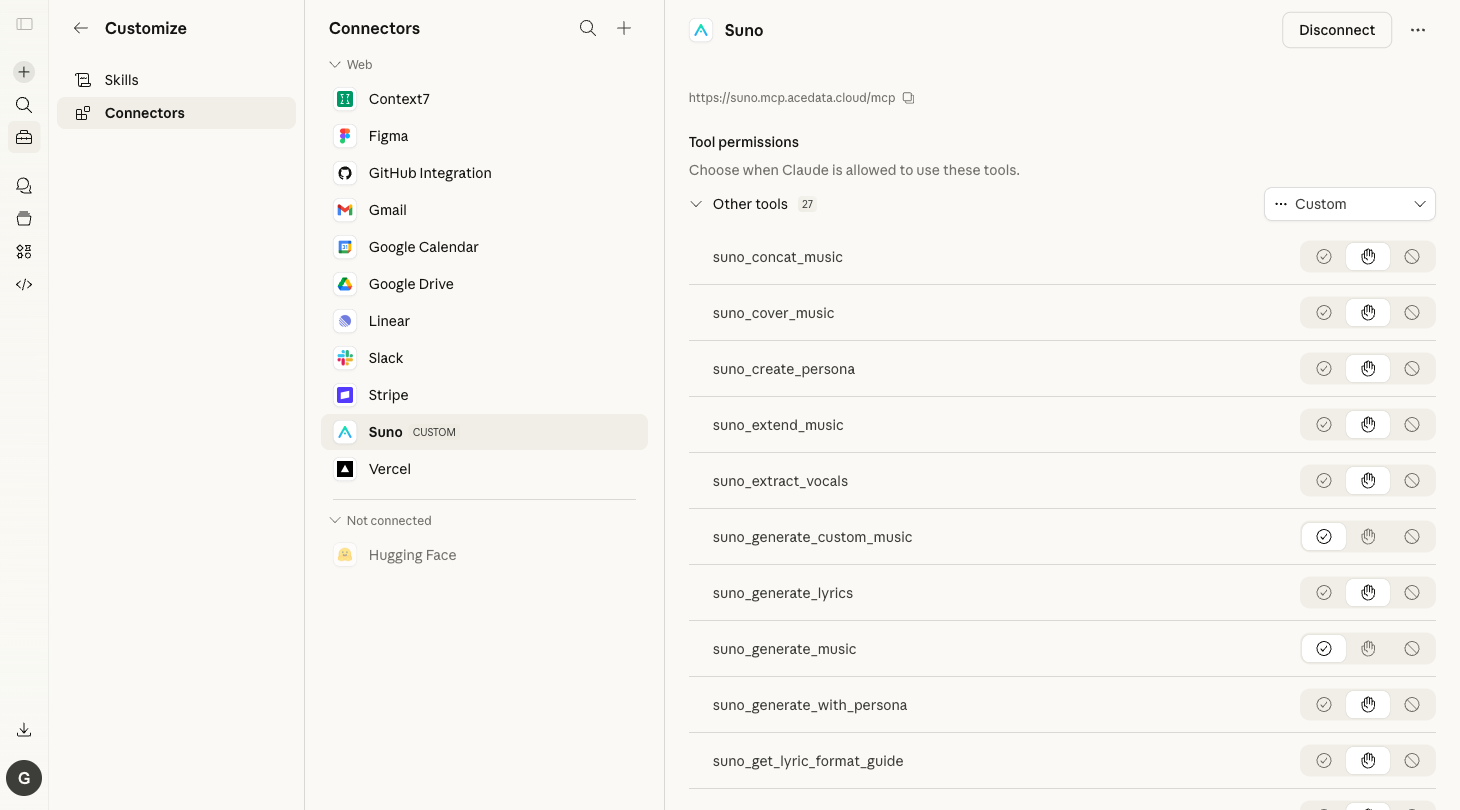
After returning to Claude, if the status shows as Connected, it means the Flux MCP is ready to use. Next, just clearly say "use Flux ..." in the conversation, and Claude will call the corresponding tool based on your needs.
¶ What Can Flux Do?
Flux MCP can now not only generate images from text but also edit images using the Kontext series models. You can hand over your requirements to Claude and let it decide whether to use flux-dev for quick drafts, flux-pro-1.1-ultra for high-quality images, or flux-kontext-pro for partial modifications based on existing images.
Typical scenarios include:
- Product Images: White background product images, scene images, main visuals for detail pages
- Brand Visuals: Logo drafts, KV posters, social media covers
- Textual Images: Event posters with titles, packaging sketches, infographic backgrounds
- Image Editing: Changing backgrounds, altering materials, replacing objects, unifying styles
¶ Usage Examples
Logo Design:
Help me design a logo for a tech company, in a simple modern style, with a blue gradient, and a transformation of the letter A.
Product Image:
Generate a product image of a coffee cup, with a white background, the cup body printed with patterns, and coffee beans placed beside it.
Social Media Image:
Generate a food image suitable for Instagram, featuring a bowl of ramen, shot from a top-down angle, in warm tones.
Product Scene Change:
Use Flux to edit this headphone product image, changing the background to a morning desk while keeping the product appearance and brand logo.
Event Poster:
Use Flux to generate a poster for a developer conference, titled "AI Builder Night," in a dark tech style, with clear text.
¶ Comparison of Flux and Midjourney
| Feature | Flux | Midjourney |
|---|---|---|
| Text Rendering | Excellent | Average |
| Realistic Style | Outstanding | Outstanding |
| Detail Restoration | Accurate | Good |
| Suitable Scenarios | Product images, logos, posters | Artistic creation, concept design |
You can configure both Flux and Midjourney simultaneously, allowing Claude to automatically select the appropriate model based on the scenario.
¶ Tools
| Tool | Description |
|---|---|
| flux_generate_image | Generate images from text, supporting multiple models and common sizes / ratios |
| flux_edit_image | Edit images based on image URL according to text requirements, recommended for Kontext models |
| flux_get_task | Query the status of a single generation or editing task |
| flux_get_tasks_batch | Batch query the status of multiple tasks |
| flux_list_models | View available Flux models and capability differences |
| flux_list_actions | View the list of Flux tools and recommended workflows |
¶ How to View Credits and Call Records
You can view the remaining credits of your current account through the AceData Cloud Console - Application List.
You can view all usage history and deduction details through the AceData Cloud Console - Usage History.
If your credits are insufficient, you can go to the AceData Cloud Console - Recharge to top up, supporting payment methods like Alipay, WeChat, Stripe, etc.
¶ Frequently Asked Questions
Q: Does connecting Claude / Claude Desktop to Flux MCP require manually copying the API Token?
A: No, it does not. This article discusses the OAuth Connector integration method for the claude.ai web version and Claude Desktop, where the authorization process will automatically complete the account binding. The API Token is mainly used for clients like Claude Code, Cursor, VS Code, etc., that require manual configuration of headers.
Q: Can it be used together with other MCP Servers?
A: Yes. Each Connector can be added independently but can all be bound to the same AceData Cloud account. For example, if you add Suno, Midjourney, Luma, and Serp simultaneously, Claude will choose the appropriate tool based on your request.
Q: Why doesn't Claude call the Flux tool after adding it?
A: First, confirm that the Connector status is Connected, and that your current Claude plan supports custom Connectors. You can also clarify the tool intent when asking, such as "use Flux to help me...". If it still fails, click Reconnect on the Connectors page to reauthorize. Q: What should I do if my prompt balance is insufficient?
A: Go to the AceData Cloud Console - Application List to check the remaining balance, then go to the Recharge Page to top up the balance. All MCP Servers share the same account balance.