
Claude Integrates Veo MCP
📘 Overview Guide: Using all 11 AceData Cloud MCP in Claude →
Google's Veo is currently one of the most stable and naturally moving models in the text-to-video space. With AceData Cloud's Veo MCP, Claude can return a 1080p video in just over 90 seconds with a single prompt in the chat box—viewable/downloadable directly on the Claude.ai web version.
This article is a hands-on record of running it on the Claude.ai web version: from adding the Connector, OAuth authorization, to generating a 1080p video of a small boat on a lake at sunrise using veo2-fast with a single prompt, complete with screenshots for easy reproduction.
¶ What is MCP?
MCP (Model Context Protocol) is an open protocol launched by Anthropic that allows models like Claude to call external tools through standard interfaces. Simply put: it gives Claude plugin capabilities.
AceData Cloud has encapsulated the full capabilities of Veo into a remote MCP Server, allowing Claude to directly:
- Text-to-video (
veo_text_to_video) - Image-to-video (
veo_image_to_video) - Video extension / delay (
veo_extend_video) - Video reshoot (
veo_reshoot) - 1080P upscaling (
veo_get_1080p,veo_upsample) - Video object recognition (
veo_video_objects) - Single / batch query tasks (
veo_get_task,veo_get_tasks_batch) - List actions / models (
veo_list_actions,veo_list_models) - Refer to prompt writing guidelines (
veo_get_prompt_guide)
The entire integration requires just one URL, and the rest is handled by Claude.
¶ Adding Veo MCP in Claude.ai Web Version
💡 The integration in Claude.ai web version is OAuth direct connection, no need to copy API Token. You only need an account that can log into AceData Cloud (GitHub / Google / WeChat are all acceptable).
¶ 1. Open Connectors Settings
Log in to https://claude.ai, click on the avatar in the lower left corner → Settings → Customize → Connectors, or directly visit https://claude.ai/customize/connectors.
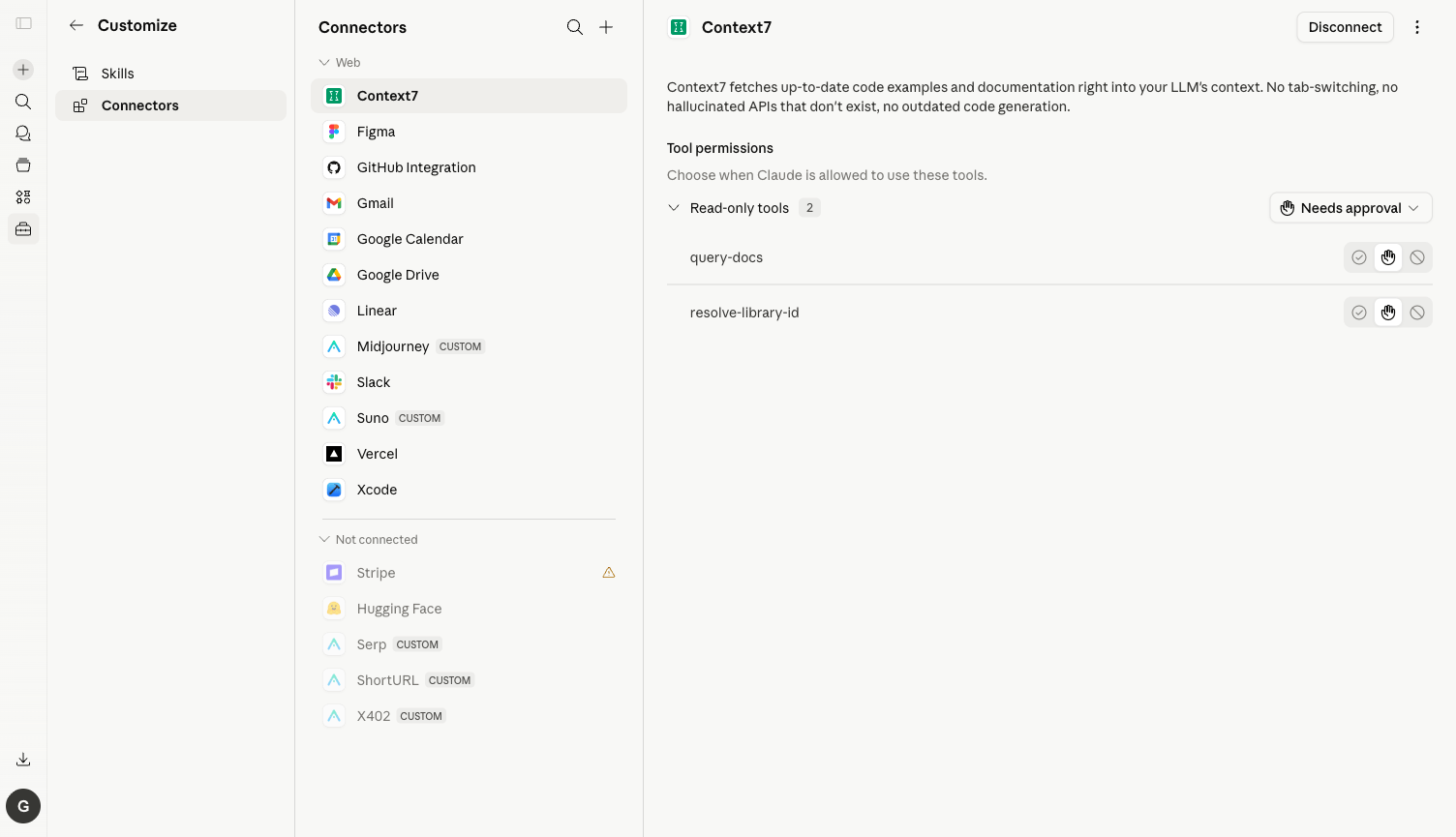
⚠️ The old entry
/settings/connectorshas been migrated to/customize/connectors. Visiting the old address will show a message "Connectors have moved to Customize."
¶ 2. Add Veo MCP Server
Click the plus sign in the upper right corner → Add custom connector, and fill in the pop-up dialog:
| Field | Value |
|---|---|
| Name | Veo (choose any name) |
| URL | https://veo.mcp.acedata.cloud/mcp |
Click Add, and Claude will automatically discover all the tools exposed by the Server.
¶ 3. OAuth Authorization
Click Connect → redirect to the AceData Cloud OAuth authorization page → log in with your account and click Allow. If you haven't registered yet, go to https://platform.acedata.cloud to register; registration comes with free credits, enough to run the demo in this article.
¶ 4. Check Tool List & Set Tools to Always Allow
After authorization, return to Claude.ai, click on the Veo Connector, and you will see 12 tools: veo_text_to_video, veo_image_to_video, veo_extend_video, veo_reshoot, veo_get_1080p, veo_upsample, veo_video_objects, veo_get_task, veo_get_tasks_batch, veo_list_actions, veo_list_models, veo_get_prompt_guide.
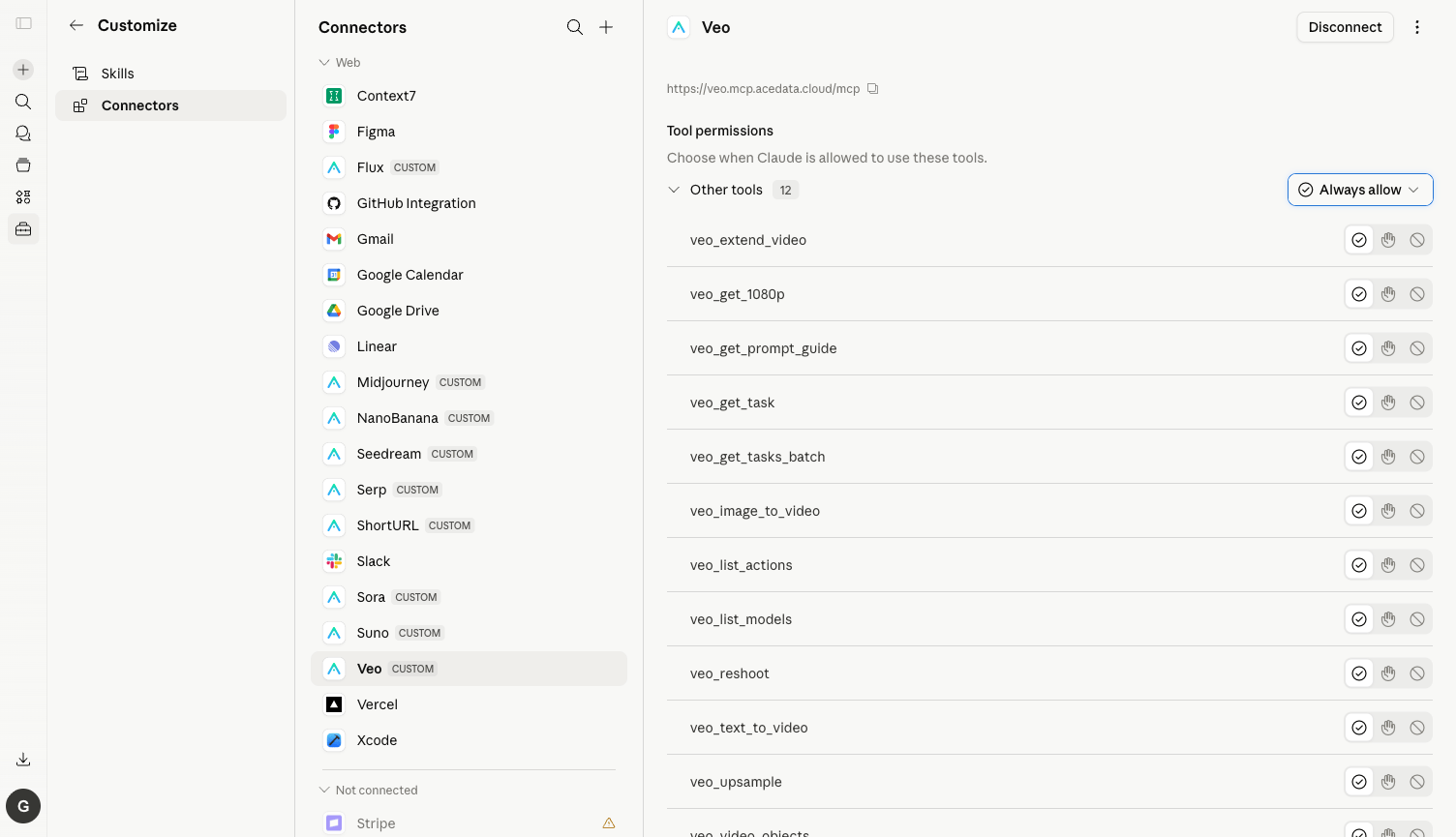
⚙️ It is highly recommended to switch the Needs approval dropdown in the upper right corner to Always allow, otherwise, a confirmation box will pop up for every tool call. Generating a video usually triggers 3–6 calls (list_models to select a model + text_to_video submission + multiple get_task polling), leading to a frustrating confirmation process.
¶ Practical Test: One English Prompt Generates a 1080p Video
Here is the actual conversation I ran:
Prompt: Use Veo text-to-video to generate one short video. First list available models and pick the FASTEST/CHEAPEST variant (e.g. veo-2 fast / veo-3 fast). Use the LOWEST resolution (480p/720p), the SHORTEST duration available (5s if possible). Subject: a small wooden boat drifting on a calm blue lake at sunrise, simple background.
What Claude did after receiving it:
- Called
veo_list_modelsto get the list of available models, selectedveo2-fast(fastest / cheapest) by itself. - Automatically discovered that the Veo API does not accept 480p/720p (valid values are
4k / 1080p / gif), downgraded to 1080p. - Called
veo_text_to_videoto submit the task. - Polling
veo_get_taskby itself, received the final video in about 92 seconds. - Posted a playable/downloadable video link in the chat box, along with a list of "used parameters."
Here is a screenshot of the final chat result:
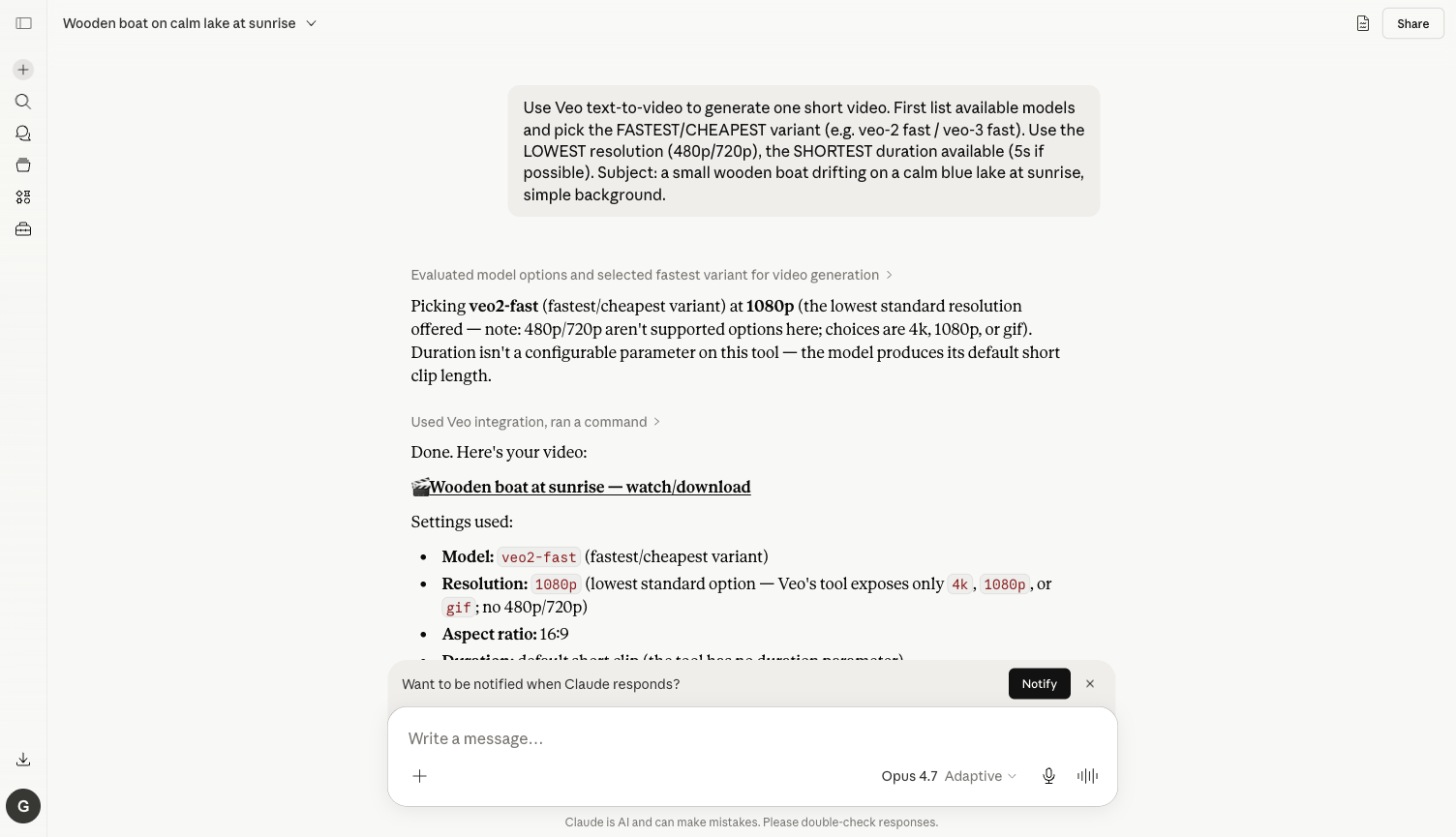
The actual generated video (1080p, about 1.6 MB, directly hosted on platform.cdn.acedata.cloud, available long-term):
📹 https://cdn.acedata.cloud/e7637f15a7.mp4
💡 The link is stable: AceData Cloud directly moves the videos generated by Veo to its own CDN, which will not expire. The link returned by Claude can be directly pasted into blogs, PPTs, or advertising pages.
¶ More Playful Uses (Same Connector)
Change the prompt to the following, and Claude will automatically select the appropriate tool:
Image-to-Video
Take this image (https://cdn.acedata.cloud/foo.png) and use Veo image_to_video to animate it: slow camera push-in, soft wind effect.
→ Claude calls veo_image_to_video, turning the static image into a 5-second short film.
Video Extension / Continuation
Extend the last video by 5 more seconds — keep the same camera angle and lighting.
→ Claude calls veo_extend_video, allowing the previous video to continue.
View Prompt Template Before Generating Video
First fetch Veo's prompt writing guide, then write me a cinematic 5-second clip prompt for "a samurai walking in heavy rain at night, neon city background", and generate it.
→ Claude first calls veo_get_prompt_guide, applies the officially recommended structure, and then issues the task, resulting in more stable video quality.
1080P Upscaling of Old Material
Take this 720p video (URL...) and use Veo upsample / get_1080p to make a 1080p version.
→ Claude calls veo_get_1080p / veo_upsample to upscale the old material.
¶ Frequently Asked Questions
Q: Why do I still need to confirm the new tool after clicking Always allow?
A: Always allow remembers at the tool granularity. list_models, text_to_video, get_task, extend_video, etc. are different tools, and each needs to be confirmed once the first time.
Q: What should I do if my balance is insufficient?
A: The error message will include insufficient balance. Go to https://platform.acedata.cloud/console/coin to recharge, supporting Alipay / WeChat / Stripe / USDC. Veo consumes a lot for single video segments (videos are inherently the most expensive tasks in LLM), so you can first use veo2-fast to get a feel for the prompt before switching to veo3 / high resolution.
Q: What advantages does it have compared to Sora / Luma / Seedance? A: Veo's physical consistency of images and stability of camera movement are among the strongest in current text-to-video; the downside is that it does not support custom durations, and each model has a fixed output duration. If you want short durations + multiple variants, you can use it in conjunction with Luma / Seedance.
Q: Can Claude Desktop and Claude Code be used this way? A: Yes. For details, see Claude Desktop + Veo MCP and Claude Code + Veo MCP.