
Cursor Integration with Luma MCP
You spent two weeks creating a beautiful Landing Page, and the PM said, "Shoot a demo video with dynamic effects to post on social media." You are confused—writing code is fine, but shooting a video?
No need to shoot. Continue your work in Cursor and tell the AI:
> Generate a 5-second video: on a dark background, a chart on a data dashboard is slowly changing, emitting a blue glow.
Luma Dream Machine will generate a short video with cinematic quality. It's ten times faster than recording your screen and adding effects yourself.
¶ Obtain API Token
Before using the Luma MCP Server, you need an API Token from AceData Cloud. The process is very simple:
- Open the AceData Cloud platform, which supports GitHub, Google, or WeChat login, and you will automatically receive free credits after registration.
- After logging in, you can see your API Token on the homepage; click the copy button to obtain it.
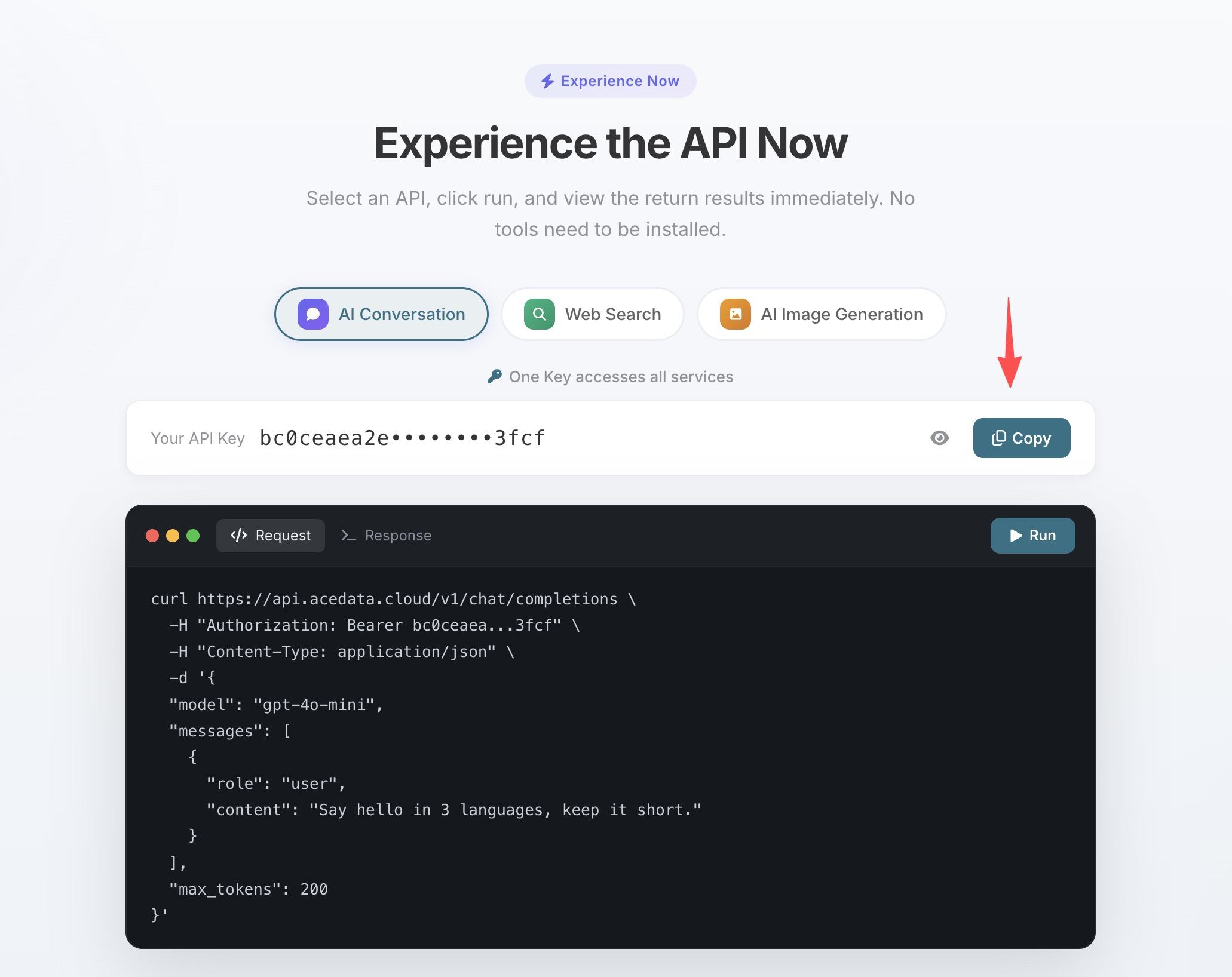
- If your credits run out, you can go to the console to recharge, supporting Alipay, WeChat, and Stripe.
One Token can be used for all MCP Servers, no need to apply separately for each service.
¶ Configure Cursor
Create .cursor/mcp.json in the project root directory:
{
  "mcpServers": {
    "luma": {
      "type": "http",
      "url": "https://luma.mcp.acedata.cloud/mcp",
      "headers": {
        "Authorization": "Bearer yourToken"
      }
    }
  }
}
After saving, restart Cursor, and you can use Luma's video generation capabilities in Agent mode.
¶ Practical Scenarios
Product launch requires dynamic materials
Using a static image in the Hero Section is too boring; you want to put a looping background video:
> Generate an abstract video with a technological feel, with deep blue particles flowing slowly, suitable for a website background, looping.
Set loop: true, and the generated video will seamlessly connect at the beginning and end, ready to be embedded in the page.
Make the design "move"
The designer gave you a Hero image, and you want to add some dynamic effects:
> Use this image as a reference to generate a video, making the clouds in the scene slowly move and the light change.
luma_generate_video_from_image accepts images or videos as references, and the AI generates a video based on the reference content.
5 seconds not enough? Extend it
The video is too short and needs to be extended to 15 seconds:
> Extend this video by 10 seconds, maintaining the same style and camera movement.
luma_extend_video continues generating from the end of the video, keeping the style consistent.
¶ Available Tools
| Tool | Description |
|---|---|
| luma_generate_video | Text to video generation |
| luma_extend_video | Video extension |
| luma_generate_video_from_image | Generate video from reference image |
¶ Other Editor Configurations
- VS Code — Configure similarly under
serversin.vscode/mcp.json, or install the Ace Data Cloud MCP extension for one-click configuration. - Claude Code — Terminal command line configuration, see Claude Code + Luma MCP Tutorial for details.
- Claude Desktop — See Claude Desktop + Luma MCP Tutorial for details.
- JetBrains — Settings → Tools → AI Assistant → MCP, add Luma service of HTTP type.