
Cursor Integration with Veo MCP
There are many AI video models on the market, but when it comes to image quality, Google Veo ranks among the best. The details are clear, the colors are natural, and it natively supports 1080p—no need for super-resolution after generation, just use it directly.
By integrating Veo MCP Server with Cursor, the video generation capability is directly embedded in your development environment. While writing code, you can generate product demo videos, social media materials, and animated illustrations for documents with just one sentence.
¶ Obtain API Token
Before using Veo MCP Server, you need an API Token from AceData Cloud. The process is very simple:
- Open the AceData Cloud platform, which supports GitHub, Google, or WeChat login, and you will automatically receive a free quota after registration.
- After logging in, you can see your API Token on the homepage; click the copy button to obtain it.
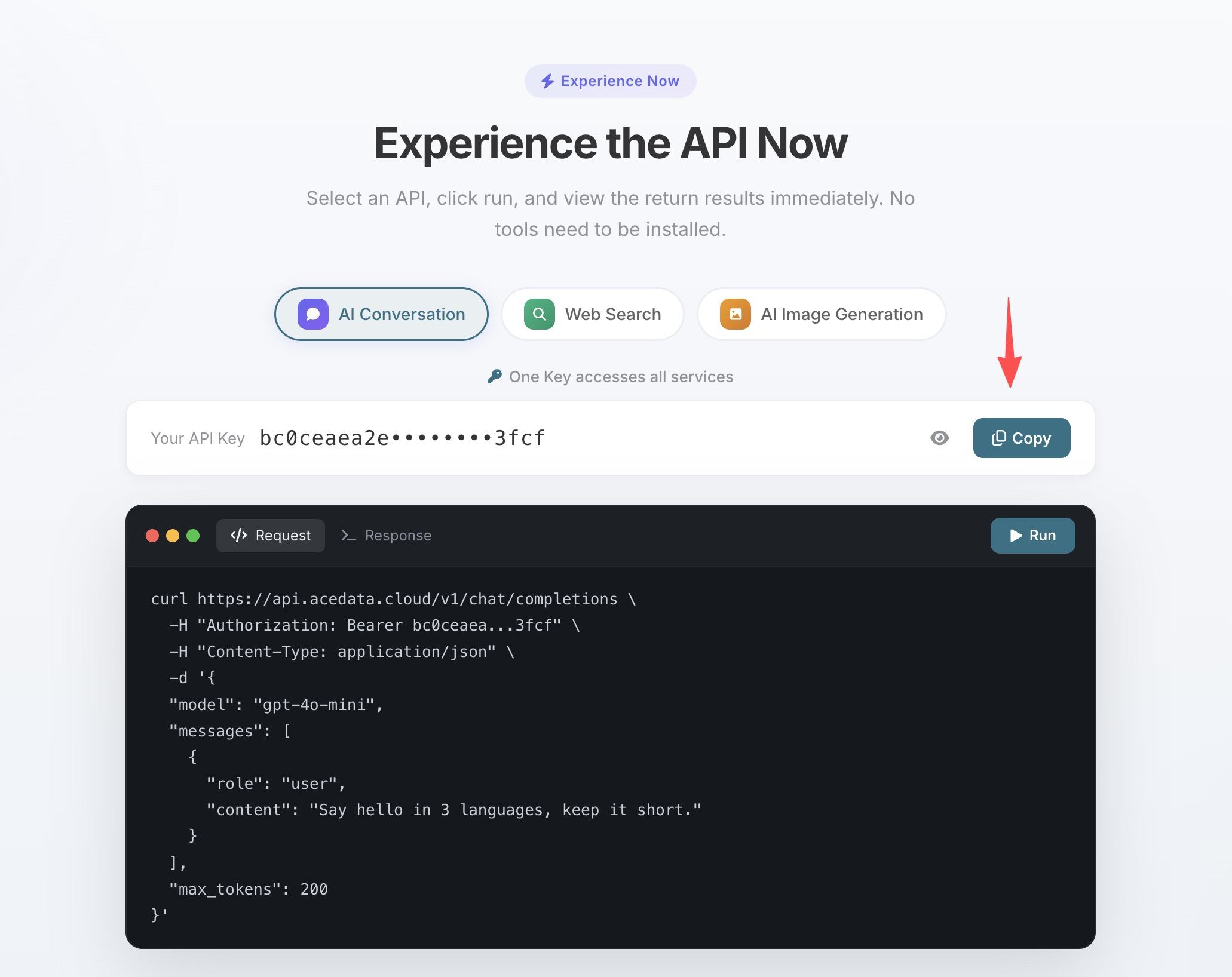
- If the quota runs out, you can go to the console to recharge, supporting Alipay, WeChat, and Stripe.
One Token can be used for all MCP Servers, no need to apply separately for each service.
¶ Configure Cursor
Create .cursor/mcp.json in the project root directory:
{
  "mcpServers": {
    "veo": {
      "type": "http",
      "url": "https://veo.mcp.acedata.cloud/mcp",
      "headers": {
        "Authorization": "Bearer yourToken"
      }
    }
  }
}
After saving, Cursor will automatically recognize the MCP configuration, and you can use the Veo tools in Agent mode.
¶ Practical Examples
Text to Video Generation
> Generate a 1080p video: a drop of ink falls into clear water, slowly spreading into irregular shapes, slow motion, cinematic quality
Image to Video Generation
Have a concept image and want to make it "come alive"?
> Use this product screenshot as a reference to generate a smooth transition animation of the interface
Video Generation with Audio
Veo supports generating videos with synchronized audio, with visuals and sound in one go:
> Generate a video with audio: waves crashing against rocks, seagulls circling above, with a sunset in the background
¶ Tool List
| Tool | Description |
|---|---|
| veo_text_to_video | Text to video generation |
| veo_image_to_video | Image to video generation |
| veo_get_1080p | Get 1080p HD version |
¶ Other Editor Configurations
- VS Code — Create
.vscode/mcp.jsonin the project root directory, usingserversas the top-level key, with the rest of the configuration the same. - Claude Code — Terminal command line configuration, see Claude Code + Veo MCP Tutorial for details.
- Claude Desktop — See Claude Desktop + Veo MCP Tutorial for details.