
Using Ace Data Cloud in AnythingLLM
AnythingLLM is an open-source client positioned as "Document → Private ChatGPT," with the core concept being Workspace—each Workspace is a set of documents, a group of users, and a set of Agent tools, independently isolated. It is designed specifically for document conversations, providing both a desktop app and Docker deployment. Among LLM providers, it has built-in support for OpenAI (Generic), allowing for a custom Base URL, thus enabling direct pointing of the conversation model to Ace Data Cloud. This article describes the configuration process.
¶ Application Process
To integrate Ace Data Cloud into AnythingLLM, first go to the Ace Data Cloud Console to obtain your API Token for backup.
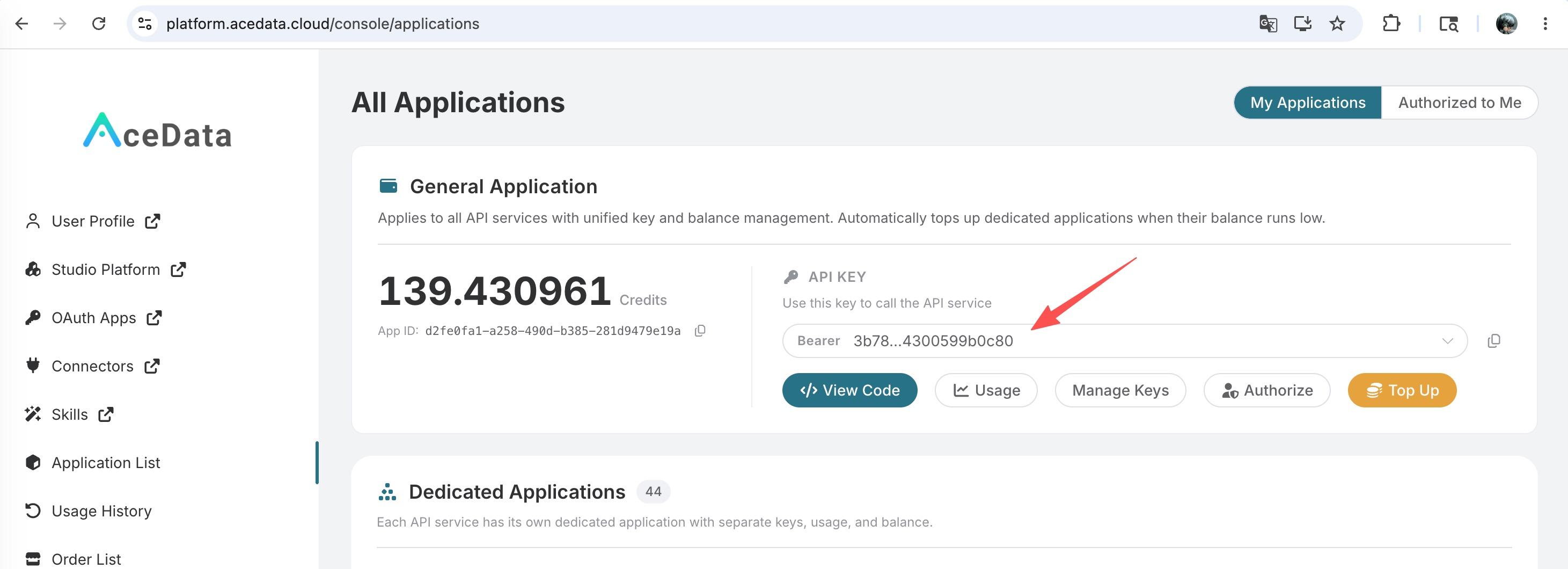
If you are not logged in or registered, you will be automatically redirected to the login page inviting you to register and log in. After logging in or registering, you will be automatically returned to the current page.
There is a free quota available for first-time applicants, allowing you to experience Ace Data Cloud's model services for free.
¶ Download AnythingLLM
For personal use, you can download the desktop version, where the vector database (LanceDB) runs locally, allowing for completely offline document searches, with internet access only when calling the model; for team multi-user scenarios, use Docker deployment.
¶ Configure the Conversation Model
Start AnythingLLM, go to Settings → LLM Preference, and select OpenAI (Generic) as the Provider (do not select the regular OpenAI, as that points to api.openai.com without a custom Base URL). Refer to the official documentation for OpenAI (Generic) LLM Provider.
| Field | Value | Description |
|---|---|---|
| Base URL | https://api.acedata.cloud/v1 |
Must end with /v1 |
| API Key | Your Ace Data Cloud Token | Token copied from the console |
| Selected Model | gpt-5 |
Dropdown, automatically pulled from the endpoint /models; falls back to manual input if not returned |
| Model context window | 128000 |
Context window size (there's also a Max Tokens field next to it) |
Note the path rules for Base URL:
| Base URL | Actual Request | Result |
|---|---|---|
https://api.acedata.cloud/v1 |
https://api.acedata.cloud/v1/chat/completions |
Correct |
https://api.acedata.cloud/openai |
https://api.acedata.cloud/openai/chat/completions |
Also usable |
https://api.acedata.cloud/openai/v1 |
https://api.acedata.cloud/openai/v1/chat/completions |
404 (/openai does not have /v1) |
https://api.acedata.cloud |
https://api.acedata.cloud/chat/completions |
404 (missing /v1) |
¶ Configure the Embedding Model
The core of AnythingLLM is RAG, which requires an embedding model to vectorize documents. Its Embedding Preference is a separate configuration from LLM Preference—see Embedder Configuration Overview. The built-in AnythingLLM Embedder (Built-in / Native) runs directly on the local machine, is ready to use out of the box, and requires no configuration, making it the default and recommended choice:
Go to Settings → Embedding Preference, and keep the Provider as the default AnythingLLM Embedder, without needing to fill in any keys. It will complete document vectorization locally, with both the original text and vectors stored in the local LanceDB, not going to the cloud.
The candidate options for AnythingLLM's Embedder (cloud: OpenAI / Azure OpenAI / Cohere; local: Built-in, LM Studio, LocalAI, Ollama) are integrated according to their fixed forms. Among them, the cloud OpenAI embedding points to
api.openai.comand does not support custom Base URLs; if you wish to use a custom endpoint, you can use the Generic OpenAI Embedder (which also has a Base URL field that can point to Ace Data Cloud'stext-embedding-3-large) or the local LocalAI Embedder. This article uses Ace Data Cloud for the conversation model and the built-in local Embedder for embedding, with no interference between the two.
¶ Recommended Models
The following conversation model IDs can be filled in as Selected Model in AnythingLLM's OpenAI (Generic) Provider:
| Family | Model ID | Notes |
|---|---|---|
| GPT | gpt-5, gpt-5-mini, gpt-4o |
OpenAI flagship / cost-effective / classic multimodal |
| Claude | claude-opus-4-8, claude-sonnet-4-6 |
Anthropic flagship / balanced |
| Gemini | gemini-3.1-pro, gemini-3-flash-preview |
Google multimodal / fast |
| Grok | grok-4 |
xAI, natively connected |
| DeepSeek | deepseek-v3 |
High cost-performance, friendly to Chinese |
For a complete list of models and their availability, please refer to the Ace Data Cloud Service Documentation.
¶ Verify Integration
If you are unsure whether the issue lies with AnythingLLM or the network, you can first verify the endpoint directly using curl (replace {token} with your Token):
curl -X POST 'https://api.acedata.cloud/v1/chat/completions' \
  -H 'Authorization: Bearer {token}' \
  -H 'Content-Type: application/json' \
  -d '{
    "model": "gpt-5",
    "messages": [{"role": "user", "content": "ping"}]
  }'
If you receive an OpenAI-compatible chat.completion object, it indicates that both the Token and endpoint are ready; if you receive HTTP 403 used_up, it means the Token is valid but the balance is insufficient, and you can recharge at the console.
¶ Advanced: Workspace and Document Conversations
After creating a Workspace, upload PDF / Word / Markdown and other documents. AnythingLLM will split them by paragraphs, generate vectors using the local Embedder, and store them in the local LanceDB. During conversations, it will first retrieve relevant segments and then pass those segments along with your questions to the dialogue model (i.e., Ace Data Cloud) for answers, marking the source of the citations below the responses. At the top of each Workspace, you can switch between Query (answers based solely on documents) and Chat (mixed with general knowledge) modes. It is recommended to use Query mode in serious scenarios to avoid hallucinations. When deploying with Docker, you can use environment variables like GENERIC_OPEN_AI_BASE_PATH, GENERIC_OPEN_AI_API_KEY, and GENERIC_OPEN_AI_MODEL_PREF to preset the same dialogue model access and enable multi-user mode.
¶ Frequently Asked Questions
¶ Prompt 404 / connection fail
This is usually because the Base URL is written as .../openai/v1 or is missing /v1. Change it to https://api.acedata.cloud/v1.
¶ Unable to converse after uploading documents
Please confirm that a usable Embedder is selected in Settings → Embedding Preference (the default AnythingLLM Embedder can run locally without additional configuration), and re-upload the documents to generate vectors.
¶ Prompt 401 Unauthorized
Please confirm that the API Key pasted is the Token from Ace Data Cloud (without the Bearer prefix and no extra spaces), and that the application has sufficient balance.
¶ Will local documents be uploaded to the cloud?
No. The original text of the documents exists in the local LanceDB, and only the segments that match the retrieval with your questions will be sent to the model.