
Using Ace Data Cloud in Cherry Studio
Cherry Studio is an open-source multi-model AI desktop client that supports Windows, macOS, and Linux. Its ability to "customize service providers + custom API addresses" allows you to integrate any OpenAI-compatible gateway (including Ace Data Cloud) into the same client.
With Ace Data Cloud, you only need one API Token to use in Cherry Studio:
- Dialogue Models: Claude, GPT (including
gpt-4o-imageand other conversational image generation models), Gemini, Grok, Kimi, GLM, DeepSeek. - Dedicated Image Models: Directly call
gpt-image-2,gpt-image-1.5,nano-banana-pro, etc., via command line / SDK (this part of Cherry Studio's UI cannot be directly accessed for now; native calling methods are provided at the end of this document).
This document strictly follows the UI fields described in the Cherry Studio official documentation to explain how to integrate Ace Data Cloud into Cherry Studio.
¶ Application Process
To integrate Ace Data Cloud into Cherry Studio, first go to the Ace Data Cloud Console to obtain your API Token for backup.
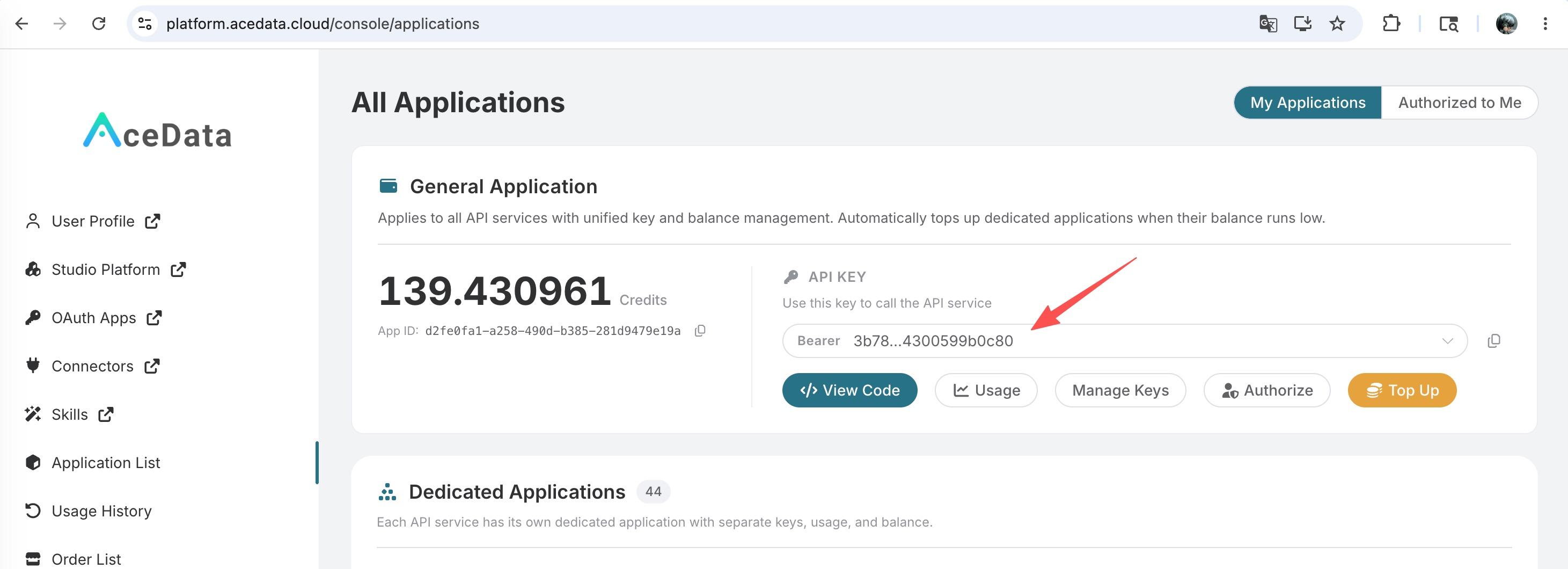
If you are not logged in or registered, you will be automatically redirected to the login page inviting you to register and log in. After logging in or registering, you will be automatically returned to the current page.
There is a free quota available for first-time applicants, allowing you to experience Ace Data Cloud's model services for free.
¶ Key Background
To correctly configure Cherry Studio, you need to understand two things—both come from the Cherry Studio official documentation and the actual interface structure of Ace Data Cloud.
¶ 1. Cherry Studio's "API Address" Concatenation Rules
Cherry Studio has clear stipulations for the API Address field among OpenAI-type providers (source: Cherry Studio Official Documentation — Model Service Settings):
- Does not end with
#: Cherry Studio will automatically append/v1/chat/completionsat the end. For example, if you enterhttps://api.example.com, the actual request will behttps://api.example.com/v1/chat/completions. - Ends with
#: Cherry Studio will use the part before#as the complete URL directly, without any further concatenation. This is key for pointing to non-default paths (e.g.,/openai/chat/completions,/gemini/chat/completions).
¶ 2. One Entry Point per Model Family in Ace Data Cloud
Ace Data Cloud provides independent OpenAI-compatible entry points for each upstream model family (e.g., GPT uses /openai, Gemini uses /gemini). Additionally, /v1/chat/completions is a universal entry point that can route any family’s model ID (not limited to Claude). Below is a list of each family’s entry points for easier group management.
| Model Family | Ace Data Cloud Interface | Some Available Models |
|---|---|---|
| Claude | https://api.acedata.cloud/v1/chat/completions |
claude-opus-4-8, claude-sonnet-4-6, claude-haiku-4-5-20251001 |
| GPT (OpenAI) | https://api.acedata.cloud/openai/chat/completions |
gpt-5.5, gpt-5.5-pro, gpt-5.4, gpt-5.2, gpt-5-mini, gpt-4o, gpt-4o-image, o3 |
| Gemini | https://api.acedata.cloud/gemini/chat/completions |
gemini-3.1-pro, gemini-3.0-pro, gemini-3.5-flash, gemini-2.5-pro |
| Grok | https://api.acedata.cloud/grok/chat/completions |
grok-4, grok-3 |
| Kimi | https://api.acedata.cloud/kimi/chat/completions |
kimi-k2-thinking, kimi-k2.5, kimi-k2-thinking-turbo |
| GLM | https://api.acedata.cloud/glm/chat/completions |
glm-5.1, glm-4.7, glm-4.6 |
| DeepSeek | https://api.acedata.cloud/deepseek/chat/completions |
deepseek-r1, deepseek-v3, deepseek-v4-flash |
The entry for Claude happens to be the default path of Cherry Studio
/v1/chat/completions, so Claude does not need to add#; other families must use the complete URL with#. For a complete list of models, please refer to the API documentation of each service in the Ace Data Cloud Console.
Therefore, in Cherry Studio, you can create a separate provider configuration for each model family; if you find it cumbersome, you can also create just one pointing to /v1/chat/completions (without adding # at the end) and include the model IDs of each family—this universal entry point is valid for all families.
¶ General Steps: Adding a Custom Provider in Cherry Studio
Below is the general process for adding a custom provider in Cherry Studio, and all families will follow this step, just with different "API Address" and model IDs.
- Click on Settings (gear icon) in the left navigation bar of Cherry Studio, and select the Model Services tab.
- Click the
+ Addbutton below the existing provider list to open the "Add Provider" pop-up. - Fill in the pop-up:
- Provider Name: An easily recognizable name, such as
Ace Data Cloud - Claude. - Provider Type: Select OpenAI from the dropdown (Cherry Studio custom providers support OpenAI / Gemini / Anthropic / Azure OpenAI four types).
- Provider Name: An easily recognizable name, such as
- Click "Add" to save.
- Find the newly added item in the provider list and enter the details page:
- Enable Switch (top right / right side of the list): Must be turned on; otherwise, the model will not appear in the dialogue selector.
- API Key: Paste the Ace Data Cloud API Token; you can click the Check button next to it to validate the key.
- API Address: Fill in the corresponding family URL provided in this document (all except Claude should end with
#). - Model Management: Click the
+ Addbutton to manually enter the model IDs you want to use (must match the IDs given in this document or Ace Data Cloud documentation exactly in case sensitivity).
Below is an example for each family.
¶ Configuring Claude
- Provider Type:
OpenAI - API Key: Ace Data Cloud Token
- API Address:
https://api.acedata.cloudDo not add
#. Cherry Studio will automatically append/v1/chat/completions, which is the entry point for the Claude service in Ace Data Cloud. - Added Model IDs (examples):
claude-opus-4-8,claude-sonnet-4-6,claude-haiku-4-5-20251001
For the complete model list, please refer to the Claude AI Service Documentation.
¶ Configure GPT / Gemini / Grok / Kimi / GLM / DeepSeek
The "API Address" for non-Claude family must end with #. For example, with GPT:
- Provider Type:
OpenAI - API Key: Same as above
- API Address:
https://api.acedata.cloud/openai/chat/completions# - Added Model IDs (examples):
gpt-5.5,gpt-5.5-pro,gpt-5.4,gpt-5.2,gpt-5-mini,gpt-4o,gpt-4o-image,o3
The same applies to other families, just replace the API address with:
- Gemini:
https://api.acedata.cloud/gemini/chat/completions# - Grok:
https://api.acedata.cloud/grok/chat/completions# - Kimi:
https://api.acedata.cloud/kimi/chat/completions# - GLM:
https://api.acedata.cloud/glm/chat/completions# - DeepSeek:
https://api.acedata.cloud/deepseek/chat/completions#
Each provider configuration only needs to add the corresponding family model ID. The same API Token can be reused across all providers, and the quota is shared.
¶ Generate Images in Cherry Studio's Conversation: Use gpt-4o-image
Cherry Studio's "Drawing" panel currently only supports the four built-in providers DMXAPI, TokenFlux, AiHubMix, Silicon-based Flow for drawing models, custom drawing service providers cannot be added. At the same time, its OpenAI custom provider sends requests in chat-completion format, which cannot interface with Ace Data Cloud's /openai/images/generations Images-API format.
However, Ace Data Cloud's gpt-4o-image is a chat-completion format image model—it accepts standard messages[] input and returns the generated image in  Markdown format within choices[0].message.content, so it can be used directly through Cherry Studio's conversation panel.
Configuration method:
- Reuse the "Configure GPT (OpenAI)" provider (API address
https://api.acedata.cloud/openai/chat/completions#). - Under that provider, "+ Add" model
gpt-4o-image. - Create a new conversation, switch to
gpt-4o-imagein the model selector, and directly input the prompt. Cherry Studio will render the image URL in the response as Markdown.
If you want the model to modify "an existing image," you can attach the image in the conversation box (Cherry Studio will send it in image_url format, consistent with OpenAI's multimodal messages). If there is no image upload button in the conversation box, please go to "Model Management" to enable the "Visual" capability switch for gpt-4o-image—Cherry Studio will only display the image upload entry when the model is marked as having visual capabilities.
For complete request/response examples, please refer to the OpenAI Chat Completion API Documentation's "GPT-4o Drawing Model" section.
¶ Advanced: Directly Call Dedicated Image Models like gpt-image-2 / nano-banana-pro
gpt-image-2, gpt-image-1.5, gpt-image-1, dall-e-3, dall-e-2, nano-banana-pro, nano-banana-2, nano-banana are dedicated Images-API format models, with the request body being {model, prompt, size, ...} instead of {model, messages: [...]}. They can only be called through Ace Data Cloud's /openai/images/generations interface, and cannot be configured in Cherry Studio—they can only be directly interfaced using curl / SDK / backend services.
Interface address:
https://api.acedata.cloud/openai/images/generations
Available model (completely consistent with Ace Data Cloud OpenAI image service's model enumeration): gpt-image-2, gpt-image-1.5, gpt-image-1, dall-e-3, dall-e-2, nano-banana-pro, nano-banana-2, nano-banana.
size field constraints (from OpenAI image generation interface's official description): can be any WIDTHxHEIGHT string, but must meet the conditions that both width and height are multiples of 16, long side ≤ 3840, total pixels ≤ 8,294,400. The preset values given in the documentation are as follows:
| Ratio | 1K | 2K | 4K |
|---|---|---|---|
| 1:1 | 1024x1024 |
2048x2048 |
2880x2880 |
| 4:3 | 1536x1024 |
2048x1536 |
3264x2448 |
| 3:4 | 1024x1536 |
1536x2048 |
2448x3264 |
| 16:9 | 1792x1024 |
2048x1152 |
3840x2160 |
| 9:16 | 1024x1792 |
1152x2048 |
2160x3840 |
Notes:
- Billing is fixed per image, regardless of
size. - The
gpt-image-1/gpt-image-1.5/gpt-image-2,nano-banana/nano-banana-2/nano-banana-profamily does not supportn > 1: even if a largernis passed, it will only return 1 image and only charge for 1 image. If multiple candidates are needed, please send multiple requests concurrently. - Long-running tasks can pass
callback_urlin the request body, which Ace Data Cloud will use to notify after the image is generated, avoiding occupying the client's waiting connection.
¶ curl Example
To generate a 1:1 1K image with gpt-image-2:
curl https://api.acedata.cloud/openai/images/generations \
  -H "Authorization: Bearer {token}" \
  -H "Content-Type: application/json" \
  -d '{
    "model": "gpt-image-2",
    "prompt": "A vintage travel poster of the Amalfi Coast, art-deco style, bold typography reads AMALFI",
    "size": "1024x1024"
  }'
The data[0].url in response is the generated image address. For a complete field description (including parameters such as image / mask for image editing /openai/images/edits), please refer to:
¶ Why Use Ace Data Cloud in Cherry Studio
¶ One Token Access to Multiple Dialogue Models
Although Cherry Studio natively supports many service providers, each requires separate registration, key application, and individual billing. With Ace Data Cloud, you only need one API Token to use models like Claude, GPT, Gemini, Grok, Kimi, GLM, DeepSeek, and the conversational drawing model gpt-4o-image under the same quota.
¶ Unified Quota and Billing Details
All requests are billed based on actual tokens / number of images, and can be viewed uniformly in the Ace Data Cloud Console - Usage History; the remaining quota can be viewed in real-time in the Application List. New users receive a free quota upon their first application.
¶ Direct Connection Available in China
Ace Data Cloud provides access nodes within the country, allowing access to models like OpenAI / Anthropic / Gemini in mainland China without the need to build a proxy.
¶ Restrictions and Notes
- Each model family requires independent provider configuration: Claude uses default concatenation, while other families must include
#and point to their respective paths. Sendinggpt-5.5to/v1/chat/completionswill not be recognized. - The trailing
#cannot be omitted: For all providers pointing to/openai/...,/gemini/...,/grok/...,/kimi/...,/glm/...,/deepseek/..., the API address must end with#, otherwise Cherry Studio will forcibly append/v1/chat/completions. - Be sure to enable the switch after saving: Cherry Studio's official documentation clearly reminds that "after successful configuration, be sure to turn on the switch in the upper right corner, otherwise the provider will remain in an unenabled state."
- Cherry Studio cannot directly connect to dedicated Images API models:
gpt-image-2/nano-banana-pro/dall-e-3can only be called directly via curl / SDK at/openai/images/generations. To draw in Cherry Studio, please use the chat-completion form ofgpt-4o-image. n > 1is not supported: Thegpt-image-*,nano-banana*family returns only 1 image per request.
¶ Frequently Asked Questions
¶ Prompt token_mismatched or invalid_token
Please confirm that the API Token pasted in the "API Key" field is from Ace Data Cloud, and that the Token is still available in the Console and the application has sufficient balance.
¶ Prompt model does not exist / api_not_implemented / 404
In most cases, this is due to sending the model to the wrong entry point (for example, sending gpt-5.5 to the Claude entry), or the API address of a non-Claude provider missing the trailing #. Please create providers for each family according to the comparison table in the "Key Background" section of this article.
¶ The model has been added, but cannot be seen in the dialogue selector
Please check if the "enable switch" for the target provider is turned on in the upper right corner. Cherry Studio will not add its models to the dialogue selector if the provider is not enabled.
¶ Want to use gpt-image-2 in Cherry Studio
The "drawing" panel of Cherry Studio and the OpenAI custom provider currently cannot connect to Ace Data Cloud's /openai/images/generations. Please use gpt-4o-image (conversational drawing, can be used directly in Cherry Studio dialogue), or call the dedicated Images API directly using curl / SDK outside of Cherry Studio.
¶ How to check remaining quota
Log in to the Ace Data Cloud Console to view the current account's remaining quota and usage history.
¶ Learn More
- Cherry Studio Official Website | Custom Provider Documentation | Model Service Settings Documentation
- Ace Data Cloud Claude AI Service
- Ace Data Cloud OpenAI Chat Completion API (including
gpt-4o-imagedrawing example) - Ace Data Cloud OpenAI Images Generations API
- Ace Data Cloud OpenAI Images Edits API
- Ace Data Cloud Service List
- Ace Data Cloud Console