
Using Ace Data Cloud in Cursor
Cursor is an AI programming editor based on VS Code, offering capabilities such as Agent mode, Tab completion, inline editing, CLI, and cloud Agent, powered by cutting-edge models from providers like OpenAI, Anthropic, and Google.
Cursor supports "Bring Your Own API Key (BYOK)", allowing you to override the Base URL and API Key in the OpenAI provider slot. Ace Data Cloud provides a fully compatible interface at https://api.acedata.cloud, enabling you to connect Cursor to Ace Data Cloud, manage multiple models (Claude, GPT, Gemini, Grok, Kimi, GLM, DeepSeek, etc.) in a unified manner, and utilize Ace Data Cloud's quota billing, usage dashboard, and withdrawal distribution system.
This document explains how to connect these models in Cursor through Ace Data Cloud.
¶ Application Process
To connect Ace Data Cloud in Cursor, first visit the Ace Data Cloud Console to obtain your API Token for backup.
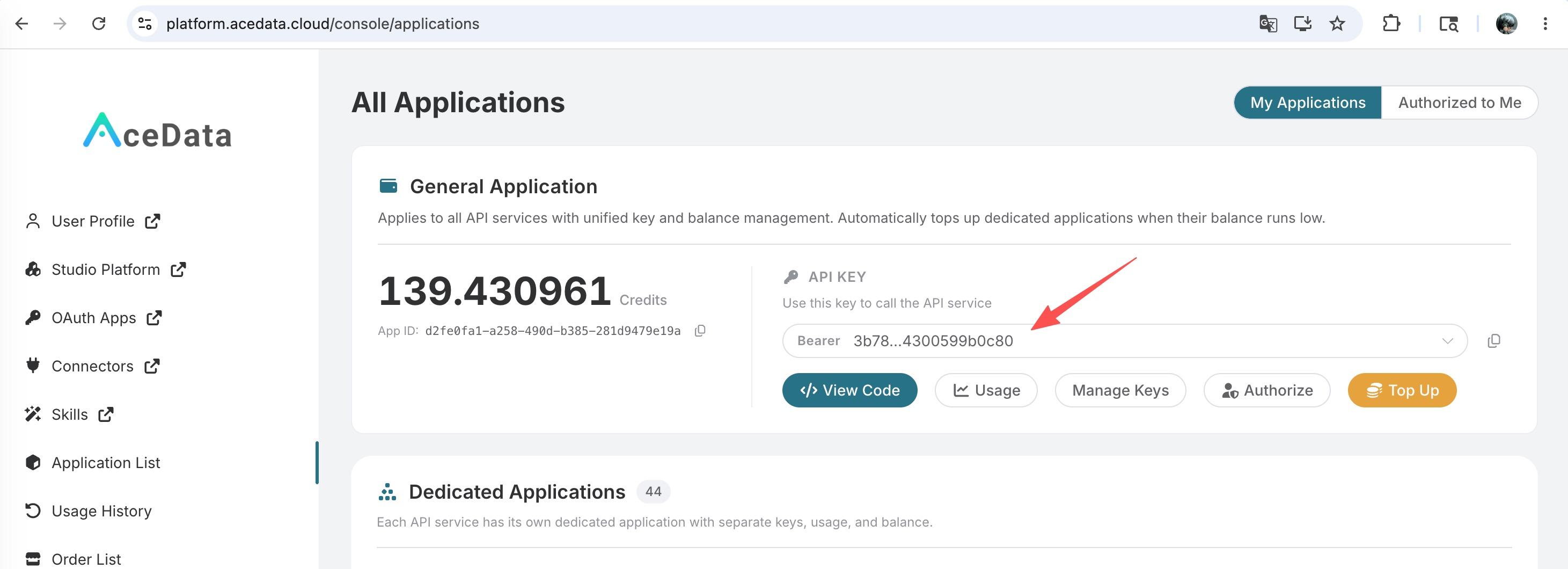
If you are not logged in or registered, you will be automatically redirected to the login page to invite you to register and log in. After logging in or registering, you will be automatically returned to the current page.
You will receive a free quota upon your first application, allowing you to experience Ace Data Cloud's model services for free.
¶ Quick Start
¶ Step 1: Configure Cursor
Open the Cursor settings (click the gear icon in the upper right corner or press Cmd/Ctrl + ,), and follow these steps:
- Go to Models and expand the API Keys section.
- Turn on the OpenAI API Key switch and paste the API Token you just obtained from the Ace Data Cloud console into the OpenAI API Key input box.
- Turn on the Override OpenAI Base URL switch and set the Base URL to:
https://api.acedata.cloud/v1 - Click the Verify button and wait for the Key verification to pass.
Note: The Base URL must end with
/v1, otherwise Cursor will construct an incorrect path when requestingchat/completions.
¶ Step 2: Add Models
After completing the BYOK configuration, return to the Models section, click + Add model, and add the model IDs you want to use in Cursor one by one. The following models have been verified by Ace Data Cloud and can be used normally in Cursor:
claude-opus-4-8claude-sonnet-4-6claude-haiku-4-5-20251001gpt-5.2-progpt-5.4-minigemini-3.1-progrok-4
The model IDs must match exactly with the names supported by Ace Data Cloud, and you can view the complete list in the Ace Data Cloud Chat Completions service documentation.
Tip: The default OpenAI models included with Cursor (e.g.,
gpt-4o) will also be proxied to Ace Data Cloud. If you do not wish to use them, you can turn off the corresponding switch in the Models list.
¶ Step 3: Select a Model
Open the model selector at the top of the Chat or Agent panel, select any model you just added, and all subsequent requests from Cursor will go through Ace Data Cloud.
¶ Why Use Ace Data Cloud in Cursor
¶ One API Key for Multiple Models
Cursor's built-in BYOK only supports a few major providers (OpenAI, Anthropic, Google, Azure, AWS Bedrock). With Ace Data Cloud, you can call models from different families such as Claude, GPT, Gemini, Grok, Kimi, GLM, DeepSeek, etc., all from the same "OpenAI" slot without needing to apply for keys from each provider separately.
¶ Unified Quota and Billing
All model requests use the same Ace Data Cloud quota, billed based on the actual number of tokens. You can view all request records and billing details in the Ace Data Cloud Console - Usage History, and you can check the remaining quota in the Application List.
¶ Channel Redundancy and Stability
Ace Data Cloud maintains multiple upstream channels for each model on the backend. When one channel is unavailable or throttled, it will automatically switch to another available channel, preventing interruptions in programming sessions in Cursor.
¶ Suitable for Team and Organizational Management
If you use Cursor as a team, you can centrally manage the team's quota and expenses in Ace Data Cloud, eliminating the need to apply for and maintain separate upstream accounts for each developer.
¶ Limitations
Please note the following points before use:
- Tab completion does not use BYOK: Cursor's Tab completion always uses the built-in models and is not affected by BYOK settings.
- Auto / Composer and other editing modes: Cursor's Auto, Composer, and other modes may not fully utilize your configured Base URL. Please refer to the Cursor official documentation on BYOK for current behavior.
- Only models compatible with OpenAI protocol are supported: Models called through the OpenAI slot must use the OpenAI-compatible interface provided by Ace Data Cloud. Most chat and inference models are supported.
¶ Frequently Asked Questions
¶ Prompt "Invalid API key"
Please confirm that the API Token pasted in the OpenAI API Key field is from Ace Data Cloud and not the official OpenAI key; also check if the Token is still available in the Console.
¶ Model not found
Ensure that the model ID entered in + Add model matches exactly with the names supported by Ace Data Cloud, without any extra prefixes or spaces. You can refer to the examples listed in "Step 2: Add Models" of this document.
¶ Base URL not effective
Please confirm that the Override OpenAI Base URL switch is turned on and that the Base URL ends with /v1. Restart Cursor after making changes to apply the settings.
¶ How to check remaining quota
Log in to the Ace Data Cloud Console to view the current account's remaining quota and usage history.