
Using Ace Data Cloud in Jan
Jan is an open-source AI desktop client that emphasizes "offline-first + privacy protection." It comes with a local inference engine (based on llama.cpp, available on Apple Silicon with MLX) that can run open-source models directly on the local machine; at the same time, it supports any OpenAI-compatible endpoints through the Remote Engine mechanism. With this capability, you can connect to Ace Data Cloud, allowing local models to coexist with cloud-based models like Claude, GPT, Gemini, Grok, DeepSeek, Kimi, GLM, and over 60 others within the same client, using just one API Token. This article describes the configuration process.
¶ Application Process
To connect Ace Data Cloud in Jan, first go to the Ace Data Cloud Console to obtain your API Token for backup.
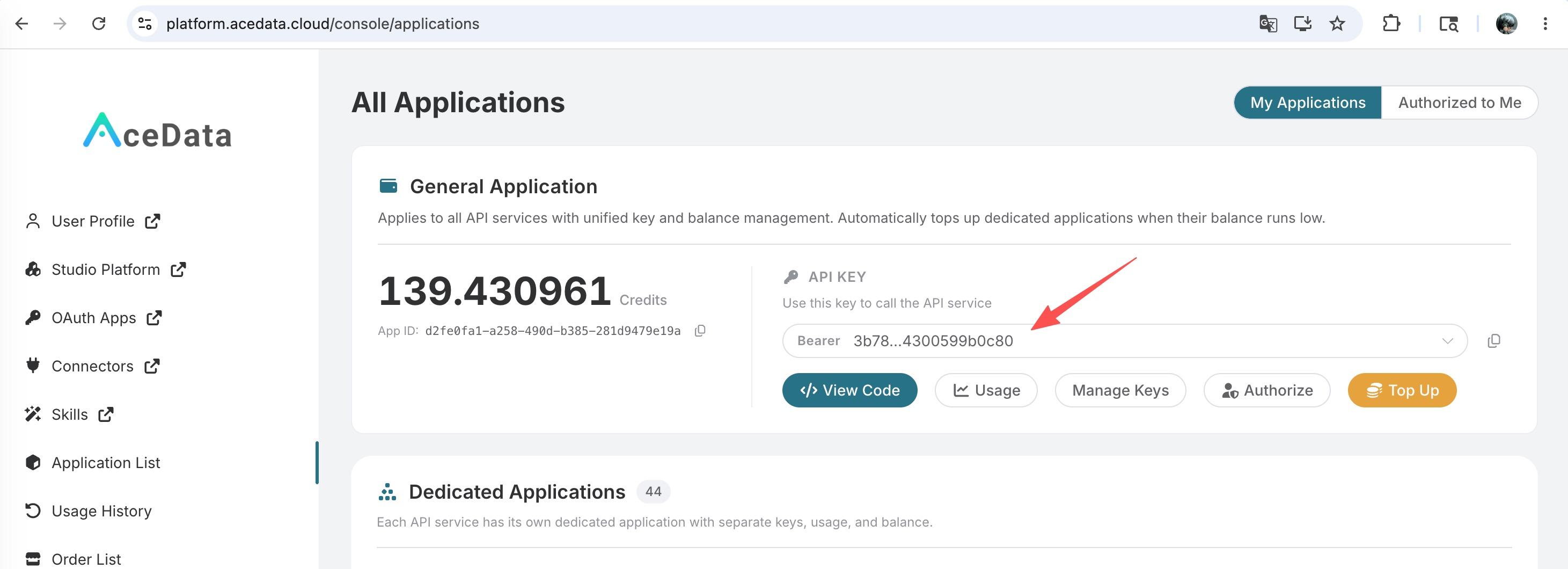
If you are not logged in or registered, you will be automatically redirected to the login page to invite you to register and log in. After logging in or registering, you will be automatically returned to the current page.
When applying for the first time, there will be a free quota provided, allowing you to experience Ace Data Cloud's model services for free.
¶ Download Jan
Go to the Jan official website to download according to your platform (Windows, macOS, Linux). For Apple Silicon models, please download the arm64 package for optimal performance.
¶ Configure Ace Data Cloud
Jan categorizes models into Local Engine (running locally) and Remote Engine (third-party API). Ace Data Cloud follows the OpenAI compatibility protocol and connects as a Remote Engine.
Open Jan, go to Settings → Model Providers, find the OpenAI card and edit it:
| Field | Value | Description |
|---|---|---|
| API Key | Your Ace Data Cloud Token | Token copied from the console |
| Base URL | https://api.acedata.cloud/v1 |
Must end with /v1, do not include a trailing slash |
The requirement for the Base URL to end with
/v1is a clear stipulation in Jan's official documentation. If you do not want to overwrite the original OpenAI configuration, you can create a newopenai-compatibletype provider by clicking "+ Add Provider" and filling in the same content.
Jan will not automatically pull the model list from Ace Data Cloud; you need to click + Add Model at the bottom of the same editing page to fill in the model IDs one by one. After adding, the models will appear in the dropdown in the upper left corner, marked with a "Cloud" icon to distinguish between remote and local.
¶ Recommended Models
The following model IDs have been verified as available through Ace Data Cloud GET /v1/models and POST /v1/chat/completions:
| Family | Model ID | Notes |
|---|---|---|
| GPT | gpt-5, gpt-5-mini, gpt-4o |
OpenAI flagship / cost-effective / classic multimodal |
| Claude | claude-opus-4-8, claude-sonnet-4-6 |
Anthropic flagship / balanced |
| Gemini | gemini-3.1-pro, gemini-3-flash-preview |
Google multimodal / fast |
| Grok | grok-4 |
xAI, natively connected |
| DeepSeek | deepseek-v3 |
High cost-performance, Chinese-friendly |
| Kimi | kimi-k2.5 |
Long text |
For a complete list of models, please refer to the Ace Data Cloud service documentation.
¶ Verification of Connection
If you are unsure whether the issue lies with Jan or the network, you can first verify the endpoint directly using curl (replace {token} with your Token):
curl -X POST 'https://api.acedata.cloud/v1/chat/completions' \
  -H 'Authorization: Bearer {token}' \
  -H 'Content-Type: application/json' \
  -d '{
    "model": "gpt-5",
    "messages": [{"role": "user", "content": "ping"}]
  }'
If you receive an OpenAI-compatible chat.completion object in return, it indicates that both the Token and the endpoint are ready; if you receive HTTP 403 used_up, it means the Token is valid but the balance is insufficient, and you can recharge at the console.
¶ Advanced: Local + Cloud Hybrid
Jan has a built-in local OpenAI-compatible API Server that can be enabled (Settings → Local API Server). Once enabled, it listens on http://localhost:1337/v1/chat/completions, running the local models you downloaded. This allows you to point the Base URL to local for free debugging in frameworks like LangChain / LlamaIndex, while switching to Ace Data Cloud remote models for complex tasks. The conversation context will not be lost when switching models.
¶ Frequently Asked Questions
¶ Prompt Connection error or 404
This is usually due to the Base URL missing /v1. Change it to https://api.acedata.cloud/v1 (it must end with /v1, and should not be written as .../openai/v1).
¶ Prompt 401 Unauthorized
Please confirm that the API Key pasted is the Ace Data Cloud Token (without the Bearer prefix and no extra spaces), and that the associated application has sufficient balance.
¶ Remote models not appearing in the dropdown
Jan will not automatically call /v1/models; you must manually + Add Model to add the model IDs.
¶ Can I upload images for the model to analyze?
Yes, but you need to choose models that support vision, such as gpt-5, gemini-3.1-pro, claude-opus-4-8.