
Using Ace Data Cloud in WorkBuddy
WorkBuddy (the desktop AI workspace of the Tencent CodeBuddy family, also known as "Tencent Lobster") is an Agent client designed for office scenarios, supporting Windows 10+ and macOS 12+. It comes with built-in models such as Auto, Hunyuan, GLM, Kimi, MiniMax, DeepSeek, and offers a custom model mechanism—any "OpenAI compatible protocol API" can be integrated with one click.
Ace Data Cloud provides OpenAI compatible access for mainstream conversational large models, so with just one API Token, you can use models like Claude, GPT, Gemini, Grok, Kimi, GLM, DeepSeek, etc., in WorkBuddy simultaneously.
All UI field names and switch behaviors in this article are derived from the WorkBuddy official model configuration documentation, and the interface addresses come from the API documentation of each service in the Ace Data Cloud console.
¶ Application Process
First, go to the Ace Data Cloud console to obtain your API Token for backup.
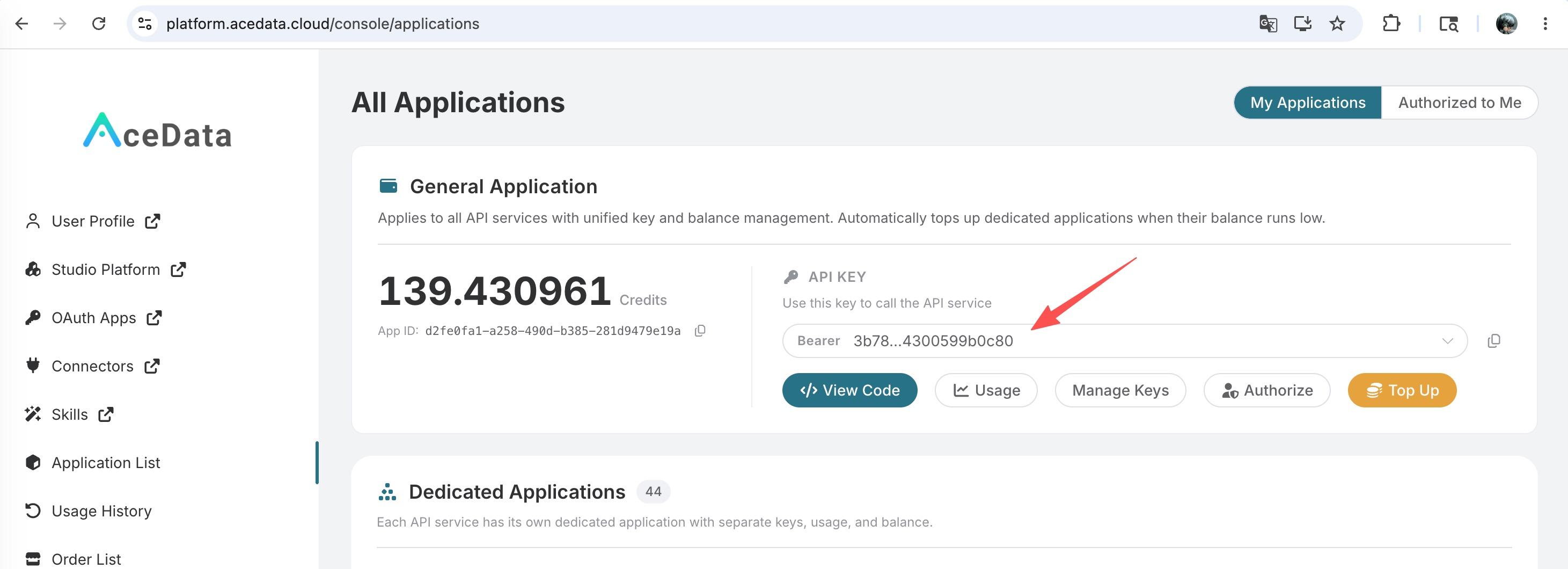
If you are not logged in or registered, you will be automatically redirected to the login page inviting you to register and log in. After logging in or registering, you will be automatically returned to the current page. There will be a free quota offered for first-time applications, allowing you to experience it before deciding whether to purchase.
¶ Ace Data Cloud Interface Addresses
Ace Data Cloud provides independent OpenAI compatible access for each model family. All access points end with /chat/completions, which belongs to the "standard path" mentioned in the WorkBuddy official documentation—this will be used in the configurations below.
| Model Family | Interface Address | Some Available Models |
|---|---|---|
| Claude / General Entry | https://api.acedata.cloud/v1/chat/completions |
claude-opus-4-8, claude-sonnet-4-6, claude-haiku-4-5-20251001 |
| GPT (OpenAI) | https://api.acedata.cloud/openai/chat/completions |
gpt-5.5, gpt-5.5-pro, gpt-5.2, gpt-4o, o3 |
| Gemini | https://api.acedata.cloud/gemini/chat/completions |
gemini-3.1-pro, gemini-3.0-pro, gemini-3.5-flash |
| Grok | https://api.acedata.cloud/grok/chat/completions |
grok-4, grok-3 |
| Kimi | https://api.acedata.cloud/kimi/chat/completions |
kimi-k2-thinking, kimi-k2.5, kimi-k2-thinking-turbo |
| GLM | https://api.acedata.cloud/glm/chat/completions |
glm-5.1, glm-4.7, glm-4.6 |
| DeepSeek | https://api.acedata.cloud/deepseek/chat/completions |
deepseek-r1, deepseek-v3, deepseek-v4-flash |
For a complete and up-to-date list of models, please refer to the API documentation of each service in the Ace Data Cloud console.
/v1/chat/completions is the general entry: it can route to any family of model IDs (not limited to Claude). So if you want "one entry to run all models," just select it; if you want to split different entries by family, you can configure them separately as per the table above.
¶ Adding Custom Models
Open WorkBuddy, go to Settings → Models, and click Add Model in the "Custom Models" area:
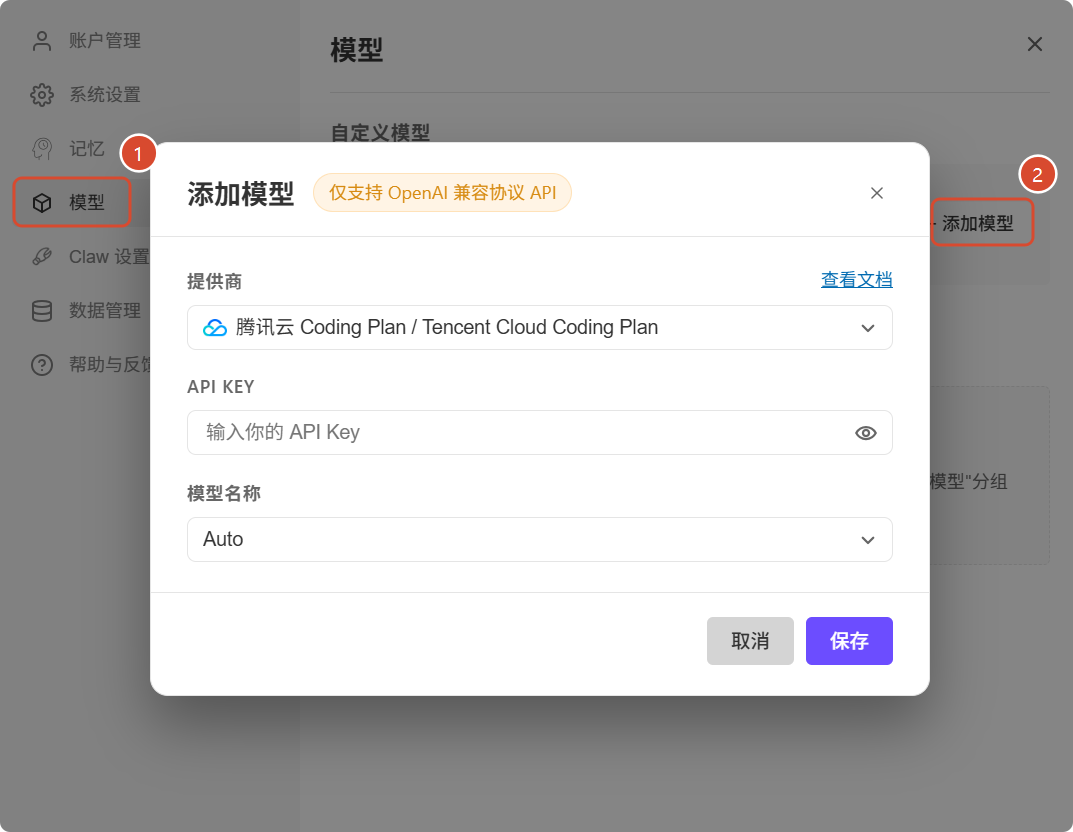
A dialog box for "Add Model" will pop up (the top label clearly states "Only supports OpenAI compatible protocol API," which is perfect for Ace Data Cloud):
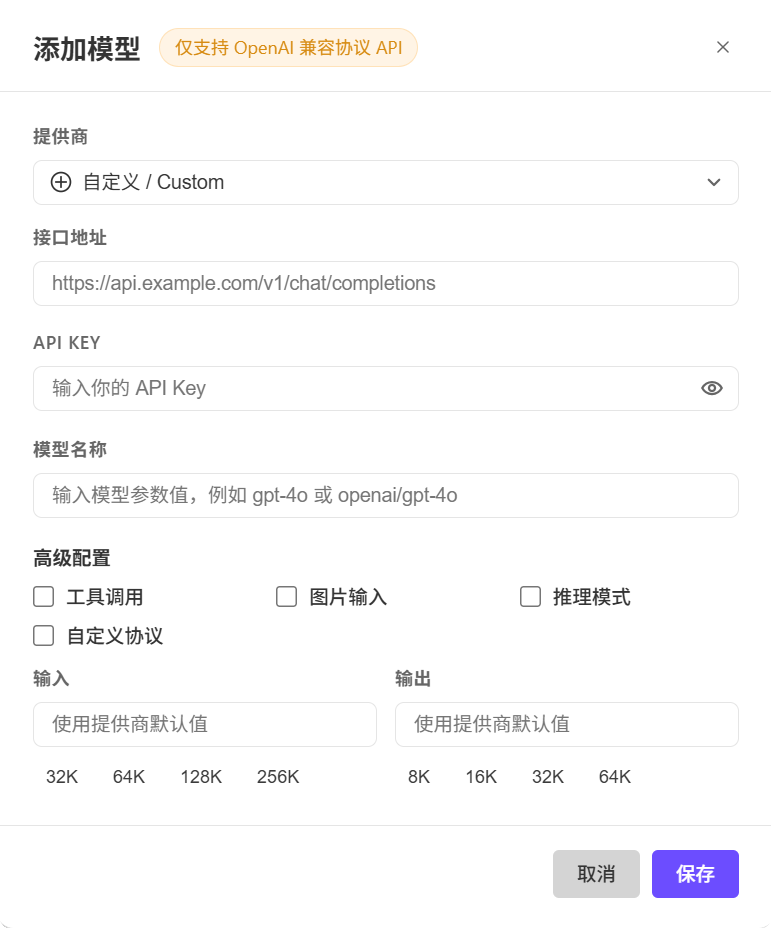
Fill in the fields as follows:
| Field | Content to Fill In |
|---|---|
| Provider | Select Custom from the dropdown |
| Interface Address | Choose one from the table above, e.g., https://api.acedata.cloud/v1/chat/completions |
| API KEY | Your API Token obtained from the Ace Data Cloud console |
| Model Name | The specific model ID you want to call, e.g., claude-opus-4-8, gpt-5.5, gemini-3.1-pro |
The four checkboxes in "Advanced Configuration" can be checked as needed:
| Checkbox | Description | Recommendation |
|---|---|---|
| Tool Calling | Declare that this model supports Function Calling / Tools. | Mainstream models on Ace Data Cloud such as Claude, GPT, Gemini, Grok, Kimi, DeepSeek, etc., support this, so it can be checked. |
| Image Input | Declare that this model supports multimodal image input. | Depending on the specific model you choose, models like claude-opus-4-8, gpt-5.5, gemini-3.1-pro, etc., can be checked. |
| Inference Mode | Declare that this model is an "inference model" (has a thinking process), and WorkBuddy will render it accordingly. | Depending on the specific model, models like o3, deepseek-r1, gemini-3.1-pro, grok-4, etc., can be checked. |
| Custom Protocol | When off, it validates and auto-completes the interface according to the standard /chat/completions; when on, it sends requests as per the filled URL. |
Keep default off. The entry of Ace Data Cloud itself ends with /chat/completions, which belongs to the standard path. |
The two dropdowns for "Input" and "Output" are the context window sizes; just leave "Use Provider Default", and WorkBuddy will use the window configuration of the upstream model on Ace Data Cloud.
Click Save, return to the chat interface, and you will see your newly added model under the "Custom Models" group in the model selector. Choose one to start a conversation, and if you see a normal reply, the integration is successful.
¶ One Entry, Multiple Additions
The entry for each model family in Ace Data Cloud is the same URL, but the model IDs used in conversations are different. If you want to use multiple models (e.g., claude-opus-4-8 and gpt-5.5) in WorkBuddy simultaneously, just repeat the "Add Model" step a few times:
- Each time the pop-up appears, select Custom as the provider;
- Fill in the API address and API KEY according to the table above (the same API Token is universally applicable to the entire family);
- Fill in the model name with the model ID you want to use;
- Independently check the corresponding capability tags for each model.
After saving, they will be displayed together in the "Custom Models" group and can be switched at any time.
¶ Frequently Asked Questions
Q: Does the API address have to be the complete /chat/completions?
A: Yes. When the "Custom Protocol" is kept off by default, WorkBuddy will perform path validation according to OpenAI standards; the entry provided by Ace Data Cloud is already the complete /chat/completions path.
Q: What happens if I fill in the wrong model name?
A: The request will be rejected by the Ace Data Cloud gateway, and WorkBuddy will see a 4xx error. Please fill in according to the model ID in the table above or the API documentation of each service in the Ace Data Cloud console.
Q: Will the API Key be uploaded?
A: No. According to the WorkBuddy official documentation, the configuration of custom models (including API Key) is only stored locally in workbuddy/models.json and is not uploaded to the cloud; WorkBuddy only serves as a communication link to forward your input to the specified API address.
Q: How are the costs incurred from the calls calculated?
A: Ace Data Cloud charges based on the actual model you call, deducting from your Ace Data Cloud account balance; WorkBuddy only consumes its own model-related point rules (the third-party costs of custom models are paid directly by you to the third party, where "third party" refers to Ace Data Cloud).