
Integration and Usage of Gemini Tasks API
The main function of the Gemini Tasks API is to query the execution status of a task by inputting the task ID generated by the Gemini Videos Generation API.
This document provides detailed instructions for integrating the Gemini Tasks API, helping you easily integrate and query the execution status of tasks from the Gemini Videos Generation API.
¶ Application Process
To use Gemini Videos Generation API, first open the Ace Data Cloud Console and copy your API Token.
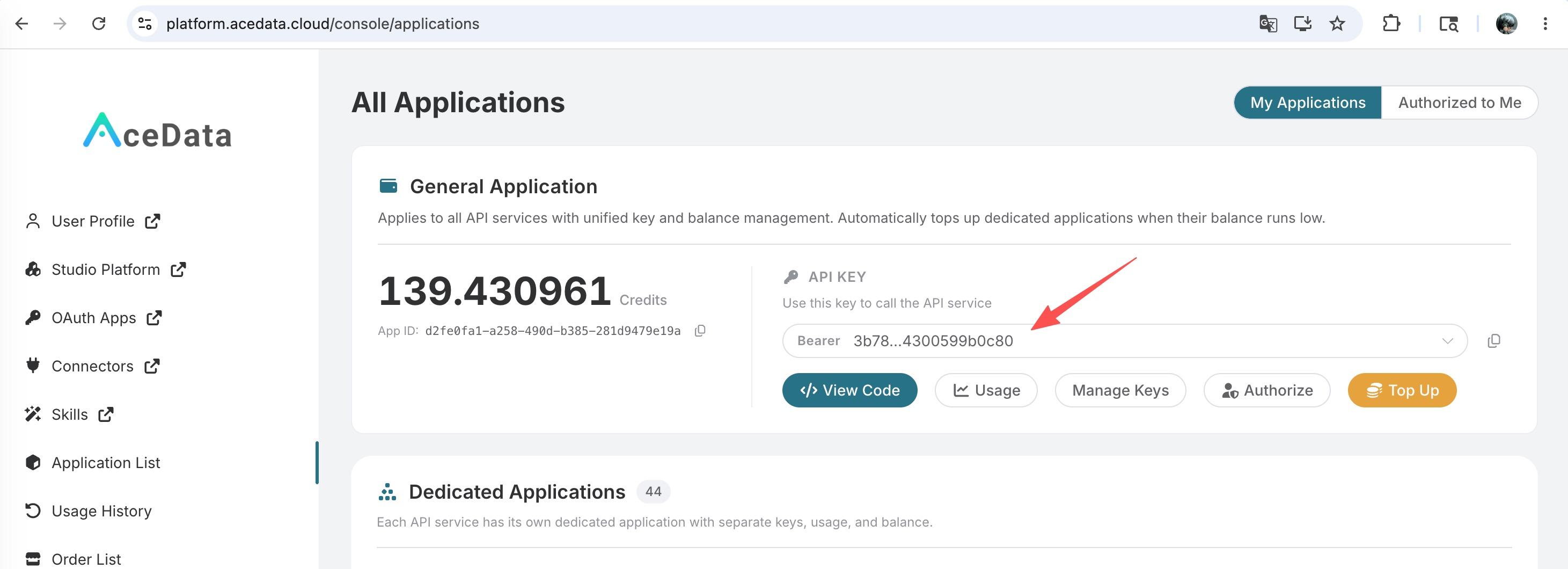
If you are not logged in, you will be redirected to sign in and brought back to this page automatically.
A single API Token works across every service on the platform — no need to subscribe per service. New accounts receive free starter credit; when it runs low you can top up your shared balance in the console.
📘 Full documentation: Gemini Videos Generation API →
¶ Request Example
The Gemini Tasks API can be used to query the results of the Gemini Videos Generation API.
¶ Setting Request Headers and Body
Request Headers include:
accept: Specifies that the response should be in JSON format, set toapplication/json.authorization: The API key for calling the API, selectable from a dropdown after application.
Request Body includes:
id: The task ID to query.action: The operation on the task; for a single query, set toretrieve.
¶ CURL Code Example
curl -X POST 'https://api.acedata.cloud/gemini/tasks' \
-H 'accept: application/json' \
-H 'authorization: Bearer {token}' \
-H 'content-type: application/json' \
-d '{
  "id": "b8976e18-32dc-4718-9ed8-1ea090fcb6ea",
  "action": "retrieve"
}'
¶ Response Example
Upon a successful request, the API will return detailed information about the task. The request field contains the request body used to initiate the task, and the response field contains the response body returned after the task is completed, for example:
{
  "id": "b8976e18-32dc-4718-9ed8-1ea090fcb6ea",
  "request": {
    "prompt": "A cinematic shot of a kitten chasing a butterfly in a sunlit garden",
    "model": "omni-flash",
    "aspect_ratio": "16:9"
  },
  "type": "videos",
  "response": {
    "success": true,
    "task_id": "b8976e18-32dc-4718-9ed8-1ea090fcb6ea",
    "trace_id": "fb751e1e-4705-49ea-9fd4-5024b7865ea2",
    "data": [
      {
        "id": "omni-flash:job_01k777hjrbfrgs2060q5zvf2a5",
        "video_url": "https://cdn.acedata.cloud/gemini/example-video.mp4",
        "state": "succeeded"
      }
    ]
  }
}
Field descriptions:
id: The ID of the generated task, uniquely identifying this generation task.request: The request information of the queried task.response: The response information of the queried task.
¶ Batch Query Operation
When querying details for multiple task IDs, set the action to retrieve_batch and pass the array of task IDs via ids:
Request Body includes:
ids: An array of task IDs to query.action: The operation on the tasks; for batch queries, set toretrieve_batch.
curl -X POST 'https://api.acedata.cloud/gemini/tasks' \
-H 'accept: application/json' \
-H 'authorization: Bearer {token}' \
-H 'content-type: application/json' \
-d '{
  "ids": ["b8976e18-32dc-4718-9ed8-1ea090fcb6ea"],
  "action": "retrieve_batch"
}'