
Gemini Videos Generation API Integration Guide
This document introduces the integration guide for the Gemini Videos Generation API, which can generate Google Gemini (omni-flash) videos by inputting text prompts (and optionally reference images).
¶ Application Process
To use Gemini Videos Generation API, first open the Ace Data Cloud Console and copy your API Token.
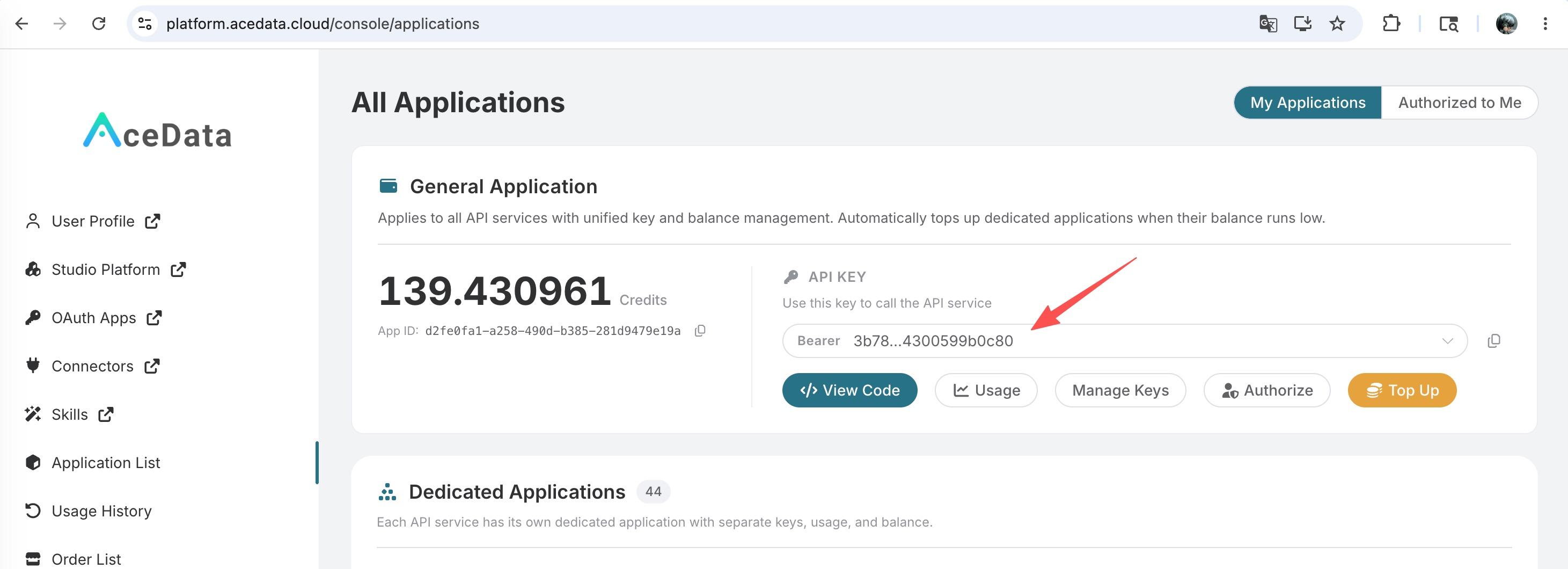
If you are not logged in, you will be redirected to sign in and brought back to this page automatically.
A single API Token works across every service on the platform — no need to subscribe per service. New accounts receive free starter credit; when it runs low you can top up your shared balance in the console.
📘 Full documentation: Gemini Videos Generation API →
¶ Basic Usage
First, understand the basic usage: input the prompt prompt, model model, and aspect ratio aspect_ratio to generate the corresponding video.
Here we set the Request Headers, including:
accept: the desired response format, set toapplication/jsonfor JSON format.authorization: the API key for calling the API, which can be selected from a dropdown after application.
The Request Body includes:
prompt: the text prompt describing the video content to generate, required.model: the video generation model, currently only supportsomni-flash, which is also the default.aspect_ratio: the aspect ratio of the generated video, optional values are16:9(landscape) or9:16(portrait), default is16:9.image_urls: an optional array of reference image (or video) URLs to guide video generation; empty entries will be ignored.callback_url: asynchronous callback URL; if set, the API will immediately return atask_id, and the result will be POSTed to this URL upon task completion.
Click the "Try" button to test, and the result will be similar to the following:
{
  "success": true,
  "task_id": "b8976e18-32dc-4718-9ed8-1ea090fcb6ea",
  "trace_id": "fb751e1e-4705-49ea-9fd4-5024b7865ea2",
  "data": [
    {
      "id": "omni-flash:job_01k777hjrbfrgs2060q5zvf2a5",
      "video_url": "https://cdn.acedata.cloud/gemini/example-video.mp4",
      "state": "succeeded"
    }
  ]
}
The response contains multiple fields, described as follows:
success: whether this video generation request was successful.task_id: the ID of this video generation task.trace_id: the trace ID of this request, used for troubleshooting.data: list of generated video results.id: unique identifier of the generated video.video_url: URL of the generated video.state: status of the video generation task, possible values arepending/succeeded/failed.
You only need to obtain the generated video via the video_url link in the data field of the result.
The corresponding CURL command is as follows:
curl -X POST 'https://api.acedata.cloud/gemini/videos' \
-H 'authorization: Bearer ${bearer_token}' \
-H 'accept: application/json' \
-H 'content-type: application/json' \
-d '{
  "prompt": "A cinematic shot of a kitten chasing a butterfly in a sunlit garden",
  "model": "omni-flash",
  "aspect_ratio": "16:9"
}'
The corresponding Python code is as follows:
import requests

url = "https://api.acedata.cloud/gemini/videos"

headers = {
    "accept": "application/json",
    "authorization": "Bearer {token}",
    "content-type": "application/json"
}

payload = {
    "prompt": "A cinematic shot of a kitten chasing a butterfly in a sunlit garden",
    "model": "omni-flash",
    "aspect_ratio": "16:9"
}

response = requests.post(url, json=payload, headers=headers)
print(response.text)
¶ Image-to-Video
If you want to generate a video based on reference images, you can pass one or more image URLs in image_urls to guide the video generation:
{
  "prompt": "The character slowly turns around and smiles at the camera",
  "model": "omni-flash",
  "aspect_ratio": "9:16",
  "image_urls": [
    "https://cdn.acedata.cloud/example-reference.png"
  ]
}
¶ Asynchronous Callback
Video generation requires some processing time. If you do not want to keep a long connection waiting, you can pass a callback_url. The API will immediately return a task_id, and the final result will be POSTed to this URL once the task is completed:
{
  "prompt": "A cinematic shot of a kitten chasing a butterfly in a sunlit garden",
  "model": "omni-flash",
  "aspect_ratio": "16:9",
  "callback_url": "https://your-domain.com/callback/gemini"
}
The immediate response will be as follows:
{
  "task_id": "b8976e18-32dc-4718-9ed8-1ea090fcb6ea"
}
¶ Query Task Result
If you use asynchronous callback or want to actively query the task status, you can use the Gemini Tasks API (POST https://api.acedata.cloud/gemini/tasks) to query the latest status and result of the task by task_id.
¶ Error Handling
When a request encounters issues, the API will return corresponding error codes and descriptions. Common errors include:
400: Invalid request parameters, e.g., missingpromptor invalidaspect_ratiovalue.401: Authentication failed, invalid token or token does not match the API.403: Insufficient balance, or the prompt was rejected due to content moderation.500: Internal server error or upstream generation failure.