
OpenCode Integration with Google Search MCP
📘 Overview:OpenCode MCP Overview →
You are troubleshooting an OOM issue on a remote server using OpenCode and see an unfamiliar kernel log. Previously, you could only copy the error message, disconnect the terminal, switch to a local browser to search, and then switch back. After connecting to the Serp MCP Server, OpenCode can directly search Google in the terminal, completing the entire chain of "view logs → search information → modify code" without leaving the command line.
Google Search MCP is suitable for debugging production issues in OpenCode, conducting technology selection research, checking official documentation, finding GitHub issues, and any scenario that requires "searching the web to continue working."
¶ Obtain API Token
Before using the Google Search MCP Server, you need to prepare an Ace Data Cloud API Token. OpenCode and Claude Code share the same set of Tokens, and the acquisition process is the same:
- Open the Ace Data Cloud Console - Application List to obtain your API Token for backup.
- If you are not logged in or registered, you will be automatically redirected to the login page; after logging in or registering, you will automatically return to the current page.
- The first application will come with a free quota, allowing you to experience the Google Search MCP service for free.
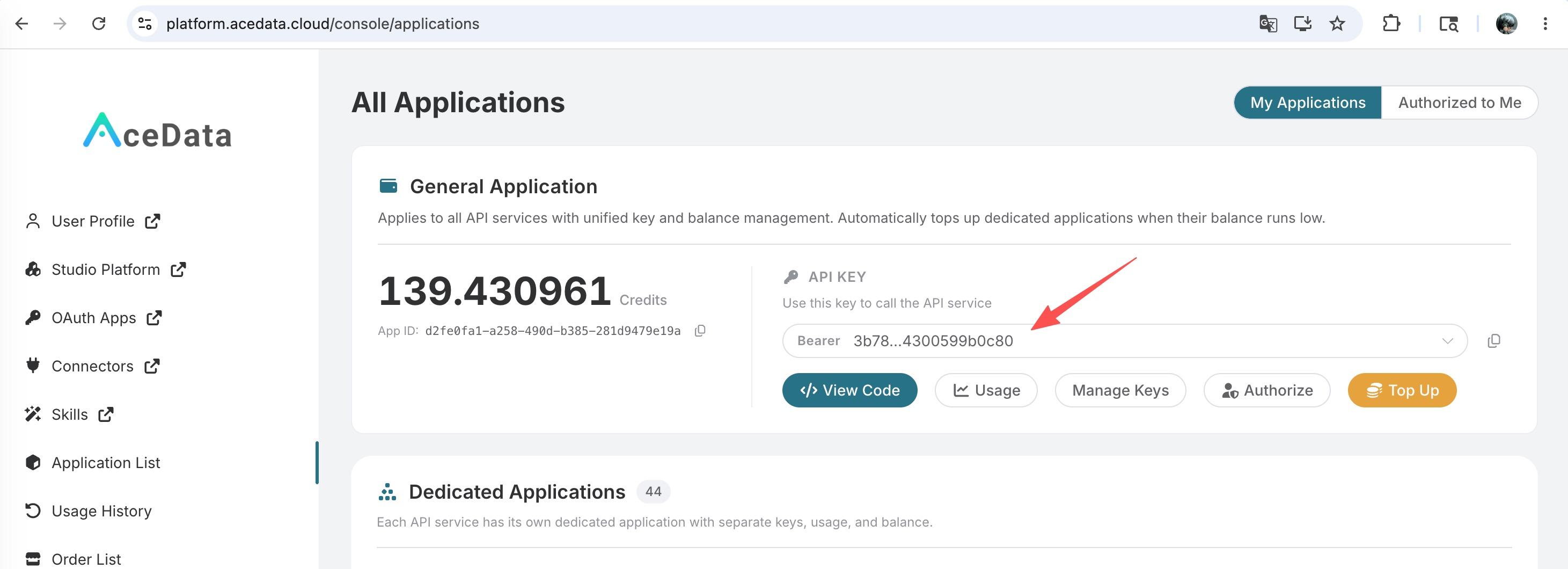
One Token can be used for all 11 MCP Servers provided by AceData Cloud, without needing to apply separately for Google Search. The documentation and screenshots suggest displaying only the masked form, such as 3b78cc40dd3b43db806a4300...., and not posting the complete Token in public repositories, issues, screenshots, or chat records.
Want to use Claude Desktop / Claude.ai web version for direct OAuth one-click authorization? Please see the Claude.ai / Desktop tutorial for Google Search MCP.
¶ Configure OpenCode
OpenCode uses a single opencode.json file to describe all MCP Servers, which can be placed in two locations; choose one based on the "scope of application" below. The field structure in both locations is identical, with the only difference being priority.
It is strongly recommended to first write the Token to an environment variable:
export ACEDATACLOUD_API_KEY="replace with your actual Token"
Then reference it in opencode.json using the {env:ACEDATACLOUD_API_KEY} placeholder to avoid writing the actual Token into the file.
¶ Global: Shared by all projects
File location: ~/.config/opencode/opencode.json, suitable for "my own machine, configured once, usable by all projects."
{
  "$schema": "https://opencode.ai/config.json",
  "mcp": {
    "serp": {
      "type": "remote",
      "url": "https://serp.mcp.acedata.cloud/mcp",
      "enabled": true,
      "oauth": false,
      "headers": { "Authorization": "Bearer {env:ACEDATACLOUD_API_KEY}" }
    }
  }
}
⚠️
"oauth": falsecannot be omitted. AceData's MCP Server uses Bearer Token authentication and does not go through the OAuth process; OpenCode will automatically redirect 401 as an OAuth challenge, causingopencode mcp listto showSSE error: Non-200 status code (401). Explicitly declaring"oauth": falseallows OpenCode to call directly withAuthorization: Bearer ..., andopencode mcp debug serpwill also echoOAuth explicitly disabled, indicating it is effective.
¶ Project-level: Effective only for the current project
File location: opencode.json in the current project root directory, which will override the global configuration. Suitable for team sharing, single repository customization, or temporarily enabling a specific MCP in a project.
{
  "$schema": "https://opencode.ai/config.json",
  "mcp": {
    "serp": {
      "type": "remote",
      "url": "https://serp.mcp.acedata.cloud/mcp",
      "enabled": true,
      "oauth": false,
      "headers": { "Authorization": "Bearer {env:ACEDATACLOUD_API_KEY}" }
    }
  }
}
If the project-level opencode.json will be committed to Git, please ensure to use the {env:ACEDATACLOUD_API_KEY} placeholder instead of the actual Token to avoid leakage.
💡 If the
.envin Shell is not explicitlyexported, you need to useset -a && source .env && set +ato pass the variables to the OpenCode process; otherwise,opencode debug configwill show"Authorization": "Bearer "(placeholder not resolved).
¶ Actual Running Results
Below is the masked output after actual execution in OpenCode 1.15.13 using an isolated temporary directory. The command uses the actual AceData Cloud Token, and the Token in the output has been replaced with 357265014ad145fc8ab2...., and the temporary configuration has been deleted.
$ opencode --version
1.15.13

$ opencode mcp list

┌  MCP Servers
│
●  ✓ serp connected
│      https://serp.mcp.acedata.cloud/mcp
│
└  1 server(s)
Seeing ✓ serp connected indicates that the Google Search MCP has been successfully integrated. If it shows ✗ or unauthorized, please check whether ACEDATACLOUD_API_KEY is set, whether the Token is copied completely, and whether the Authorization prefix is Bearer (pay attention to case and spaces).
To debug the connection details of a specific MCP:
opencode mcp debug serp
After a successful handshake, OpenCode's INFO log will output service=mcp key=serp transport=StreamableHTTP connected and service=mcp key=serp toolCount=11 (11 tools tested), indicating that the Google Search MCP is ready to be called by the model.
🤖 Model Selection Testing Suggestions: To truly allow the model to actively call the Google Search MCP in OpenCode, please prioritize using OpenAI series models (such as
acedatacloud/gpt-5-mini,acedatacloud/gpt-5). When the Claude series models on AceData are exposed through the OpenAI compatible interface, tool calls often returnImproperly formed request(tested:acedatacloud/claude-haiku-4-5-20251001,acedatacloud/claude-sonnet-4-6reported this error when mounting multiple MCPs). Claude models can be used normally when only doing dialogue without calling tools.
¶ Typical Scenarios
After configuration is complete, you can directly call using natural language in the OpenCode session without switching to /mcp:
Debugging Production Issues
Search nginx error 502 bad gateway upstream sent too big header how to solve
Technology Selection Research
Search for the performance comparison of Python asynchronous ORM in 2025, SQLAlchemy 2.0 async vs Tortoise ORM
Check Official Documentation
Search for the official documentation of Kubernetes CronJob concurrencyPolicy, the difference between Forbid and Replace
¶ Tool List
The table below lists the main tools (Google Search MCP Server has exposed a total of 11 tools, which can be obtained through curl -X POST https://serp.mcp.acedata.cloud/mcp -H 'Authorization: Bearer <token>' -H 'Accept: application/json' -H 'Content-Type: application/json' --data '{"jsonrpc":"2.0","id":1,"method":"tools/list"}' for a complete list):
| Tool | Description |
|---|---|
| serp_google_search | Google web search, supports specifying country, language, and time range |
| serp_google_images | Google image search |
| serp_google_news | Google news search |
| serp_google_videos | Google video search |
| serp_google_maps / serp_google_places | Maps / local business search |